Joomla Google Indexing: The Complete Guide to Getting Your Joomla Site in Search Results
Master Joomla's unique article-category-menu architecture for faster, cleaner Google indexing
In this guide
Joomla powers millions of websites, yet its layered architecture -- articles nested inside categories, linked through menu items -- creates unique indexing challenges that generic SEO advice ignores. Unlike simpler platforms, Joomla can generate multiple URL paths to the same article depending on menu items, category layouts, and SEF URL settings.
This guide is built for Joomla 4.x and 5.x administrators who want every meaningful page indexed while keeping duplicates out of Google. We cover Global Configuration SEO settings, the OSMap extension for XML sitemaps, .htaccess setup, metadata management, and auditing for orphan pages and duplicate paths.
Understanding Joomla's Content Architecture and Its SEO Implications
Joomla's content model is built around three interconnected layers: articles, categories, and menu items. An article lives inside a category (or a nested sub-category chain), but it only becomes reachable on the front end when a menu item points to it -- either directly as a Single Article menu type, or indirectly through a Category Blog or Category List layout.
This layered system is powerful for organizing large sites, but it creates a fundamental indexing problem: the same article can appear at entirely different URL paths depending on which menu item serves it.
For example, suppose you have an article titled "Annual Report 2025" inside the category "Company News." If one menu item called "News" uses a Category Blog layout, the article URL might be /news/annual-report-2025. But if you also create a direct Single Article menu item under "Investor Relations," Joomla generates a second URL: /investor-relations/annual-report-2025. Both resolve, both render the full article, and both can end up in Google's index -- splitting link equity and confusing ranking signals.
Joomla 4+ improved this situation with better canonical URL handling compared to Joomla 3, but the defaults are not foolproof. You must consciously plan your menu structure so every article has exactly one canonical path.
The golden rule: create one primary menu item that serves each piece of content, and use other menus for navigation only without creating additional routed menu items to the same content.
Category depth also matters for crawl efficiency. Joomla allows unlimited category nesting, and each level adds a URL segment: /level1/level2/level3/article-alias. Google can crawl deep URLs, but empirically, pages more than three clicks from the homepage receive less crawl budget. Keep your category tree to two or three levels maximum, and ensure your sitemap exposes all deep pages directly.
Configuring Joomla's Global SEO Settings
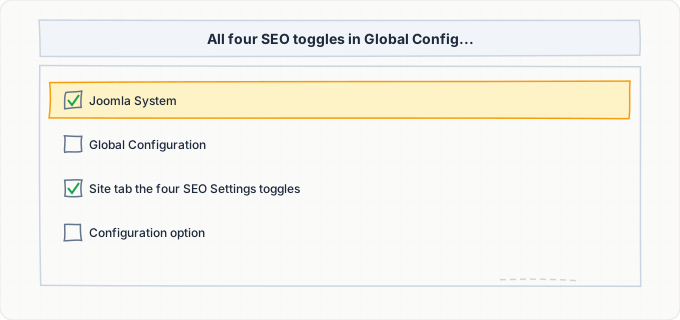
Joomla's SEO configuration lives in System > Global Configuration > SEO Settings (in Joomla 4/5, this is under the Site tab). There are four toggles that matter, and all four should be set correctly before you do anything else.
- 1Search Engine Friendly URLs must be set to Yes. This rewrites Joomla's default query-string URLs (
index.php?option=com_content&view=article&id=42) into clean paths like/category/article-alias. Without this, Google indexes your pages with ugly parameterized URLs that are harder to rank and impossible to share.
- 1Use URL Rewriting must be set to Yes -- but only after you have renamed
htaccess.txtin your Joomla root to.htaccess(on Apache) or configured the equivalent rewrite rules in Nginx. If you enable this toggle without the rewrite rules in place, every page on your site will return a 500 error. On Nginx, add a location block withtry_files $uri $uri/ /index.php?$args;to your server configuration.
- 1Add Suffix to URL appends
.htmlto every URL. This is a stylistic choice -- Google does not care either way -- but pick one setting and stick with it permanently. Changing it later creates a mass redirect situation.
- 1Unicode Aliases should be set to Yes only if your site uses non-Latin characters (Arabic, Japanese, Cyrillic, etc.). For English-language sites, leave it at No to keep URLs as clean ASCII slugs.
Beyond these four toggles, set the Robots meta field to Index, Follow at the global level (System > Global Configuration > Metadata > Robots). This is the default robots directive Joomla applies to every page unless overridden at the menu-item or article level.
Avoid setting it to noindex globally -- a surprisingly common mistake during development that administrators forget to revert at launch.
Setting Up XML Sitemaps with OSMap
Joomla does not ship with a built-in XML sitemap generator, so you need an extension. OSMap (formerly XMap) is the most widely used free option, and it integrates tightly with Joomla's menu system. After installing OSMap via System > Extensions > Install, navigate to Components > OSMap to create your first sitemap.
OSMap generates the sitemap by crawling your menu structure. Click New to create a sitemap, give it a name, and then select which menus to include. This is critical: only include menus that contain the canonical paths to your content. If you have a utility menu with duplicate links, exclude it to prevent duplicate URLs.
For each menu included in the sitemap, OSMap lets you set a default change frequency and priority (0.0 to 1.0). Recommended settings:
- Homepage and landing pages -- priority 1.0, daily frequency
- Category blog pages -- priority 0.8, weekly frequency
- Individual articles -- priority 0.6, weekly or monthly depending on update frequency
These values are hints, not commands, but they help Google allocate crawl budget across your pages.
Once created, your sitemap is available at /index.php?option=com_osmap&view=xml&id=1 (or a cleaner URL if you create a menu item for it). Copy this URL and submit it in Google Search Console under Sitemaps.
The paid version, OSMap Pro, adds automatic sitemap ping on content changes, image sitemaps, and multi-sitemap support for sites with more than 50,000 URLs.
An alternative is JSitemap, a commercial extension that offers real-time sitemap updates, Google News sitemaps, hreflang sitemaps for multilingual sites, and a built-in indexing dashboard. JSitemap Pro is worth the investment if you run a large Joomla site with frequent content changes, because it can ping Google and Bing every time you publish or update an article -- something OSMap free does not do automatically.
Regardless of which extension you choose, verify the sitemap output. Open the XML sitemap URL in a browser and scan for:
- Duplicate entries
- URLs with query strings that should not be there
- Pages you intentionally set to noindex
A clean sitemap contains only the URLs you want in Google's index -- nothing more.
Metadata Management: Articles, Categories, and Menu Items
Joomla provides three levels where you can set metadata: the article itself, the category, and the menu item that displays the content. Understanding which level takes precedence is essential for proper indexing.
Article level: Open any article in the administrator and click the Publishing tab. Here you will find fields for Meta Description and Meta Keywords (keywords are ignored by Google but still present in Joomla's interface). The Meta Description appears in search results as the snippet beneath your page title. Write a unique, compelling description of 150-160 characters for every article -- Joomla will not auto-generate one for you, and leaving it blank means Google picks a random snippet from your page body.
Menu item level: Click on any menu item and navigate to the Metadata tab (in Joomla 4/5, this is under Page Display or Metadata depending on the menu item type). If you enter a Meta Description here, it overrides the article-level description when that article is accessed through this menu item. This is useful for landing pages where you want different messaging, but it also means you can accidentally create conflicting metadata.
Page title precedence follows similar rules. In the menu item's Page Display tab, the Browser Page Title field overrides the article's title in the HTML <title> tag. If left blank, Joomla uses the article title followed by the site name (controlled by Global Configuration > Include Site Name in Title).
Category level: Open the category editor and look for the Metadata tab. Category meta descriptions appear on Category Blog and Category List pages. These are separate pages with their own URLs, and they need their own unique meta descriptions. Many Joomla administrators neglect category metadata entirely, resulting in dozens of pages with blank descriptions and generic titles like "Category: News."
Joomla 4 and 5 also support the robots meta directive at the menu-item level, allowing you to set individual pages to noindex without affecting the global default. Use this for:
- Login forms
- Registration pages
- Search results pages
- Any other utility pages that should not appear in Google
Handling Multilingual Joomla Sites for Indexing
Joomla has built-in multilingual support through its Language system, and when configured correctly it generates proper hreflang tags that tell Google which version of a page to show to users in different regions. However, the setup requires precision, and mistakes create severe indexing problems.
The standard Joomla multilingual setup uses language code prefixes: /en/ for English, /fr/ for French, /de/ for German, and so on. Each language gets its own menu, its own content categories, and its own set of articles. Articles are linked across languages using Joomla's Associations system -- you open the English article, click the Associations tab, and select the French equivalent.
When associations are set up correctly, Joomla automatically outputs <link rel="alternate" hreflang="xx"> elements in the HTML head. However, if even one association is missing or points to an unpublished article, the hreflang chain breaks for that page, and Google may index the wrong language version or treat both versions as duplicates.
Audit your associations regularly using Components > Multilingual Associations to find broken or missing links.
Your sitemap must include all language versions. OSMap handles this automatically if you include all language-specific menus. JSitemap Pro generates a dedicated hreflang sitemap that Google specifically recommends for sites with many languages. Either way, verify that every URL in one language's sitemap has corresponding entries in other language sitemaps.
A common pitfall is the default language URL. Joomla lets you set one language as the default and optionally remove its prefix -- so English might be at /about while French is at /fr/a-propos. This asymmetry can confuse crawlers. The safest approach is to keep prefixes for all languages, including the default, so every URL clearly signals its language.
Auditing and Cleaning Up Orphan and Duplicate URLs
Joomla installations accumulate URL debris over time, especially sites that have been upgraded from Joomla 3 (or even Joomla 2.5/1.5). Old extensions, deleted menu items, and legacy URL schemes leave behind pages that still respond with a 200 status code but contain no meaningful content.
Start by running a crawl with a tool like Screaming Frog, Sitebulb, or the free version of Xenu Link Sleuth. Feed it your homepage URL and let it discover every reachable page. Compare the crawled URL list against your sitemap. URLs found by the crawler but not in your sitemap are candidates for investigation: are they legitimate pages you forgot to include, or junk that should return a 404 or redirect?
Common sources of orphan URLs in Joomla include:
- Old component pages from uninstalled extensions (e.g.,
/component/virtuemart/from a removed e-commerce extension) - Tag pages if you enabled Joomla's tagging system and then removed tags without redirecting
- Search result pages at
/component/search/ - User profile pages at
/component/users/
These pages are often thin content with little value, and having them indexed dilutes your site's quality signals.
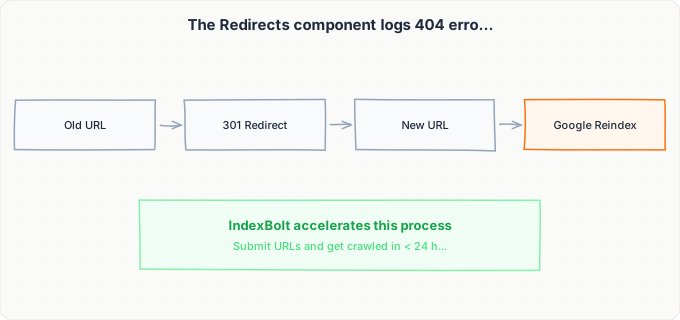
To handle these, use Joomla's Redirect component (Components > Redirects). When you delete a page or unpublish content, Joomla logs 404 errors here and lets you set up 301 redirects to appropriate replacement pages. For bulk cleanup, add redirect rules directly to your .htaccess file -- for example, RedirectMatch 301 ^/component/search/.* / redirects all search result URLs to your homepage.
For duplicate URLs caused by the menu-item architecture, use Joomla's built-in canonical URL support. In Joomla 4/5, the system automatically adds <link rel="canonical"> pointing to the URL generated by the menu item with the lowest ID (or the one flagged as the default). Verify this is working by viewing the page source of any article accessible through multiple paths -- the canonical tag should point to the same URL regardless of how you arrived at the page.
Step-by-Step Guide
Enable SEF URLs and URL Rewriting
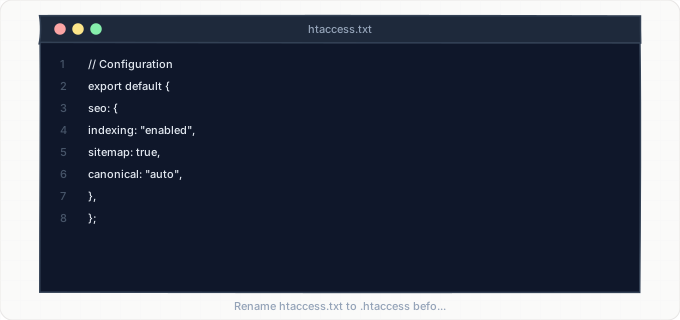
Go to System > Global Configuration > Site tab. Set Search Engine Friendly URLs to Yes. Rename htaccess.txt to .htaccess in the Joomla root (on Nginx, add rewrite rules instead). Then set Use URL Rewriting to Yes. Set Add Suffix to URL to No and Robots to Index, Follow. Save and visit several pages to confirm clean URLs work with no 500 errors.
Install and Configure an XML Sitemap Extension
Install OSMap (free) or JSitemap (commercial) via System > Extensions > Install. Create a new sitemap selecting only menus with canonical content paths. Set priorities: homepage 1.0/daily, categories 0.8/weekly, articles 0.6/weekly. Copy the sitemap URL and submit it in Google Search Console > Sitemaps. Check back in 24-48 hours for errors.
Write Unique Metadata for Every Article and Category
Open each article, click the Publishing tab, and write a unique Meta Description (150-160 characters) with a relevant keyword. Repeat for every category via the Metadata tab. For menu items serving as landing pages, set a custom Browser Page Title in the Page Display tab. Track progress in a spreadsheet listing each article, URL, and metadata status.
Audit and Fix Duplicate URL Paths
Run a full-site crawl and sort results by page title to find articles at multiple URLs. For each duplicate, keep the shortest canonical path and delete or unpublish redundant menu items. If a menu item is needed for navigation, change its type to URL pointing to the canonical path. Re-crawl and verify each article has exactly one URL with the correct <link rel="canonical">.
Set Up Redirect Rules for Old and Deleted Content
Enable the System - Redirect plugin via Extensions > Plugins. Open Components > Redirects after a few days and review logged 404 URLs. For each, set a Destination URL to the most relevant page and choose 301 (Permanent). For bulk patterns, add RedirectMatch rules in .htaccess. Test by visiting old URLs and verifying 301 responses in DevTools.
Configure robots.txt and Noindex Rules
Open robots.txt in your Joomla root. Keep the default blocks (/administrator/, /cache/, /tmp/, etc.). Add Disallow rules for /component/search/ and /component/users/. Append your sitemap URL at the bottom. For pages that should render but not be indexed (login, thank-you pages), set the noindex robots directive at the menu-item level instead of blocking in robots.txt.
Submit URLs to Google and Monitor Indexing with IndexBolt
Use IndexBolt to submit your homepage, top category pages, and latest articles directly to Google. Normal mode (1 credit/URL) suits routine articles. Instant mode (10 credits/URL) is ideal for time-sensitive news or product launches. Monitor indexing status in both IndexBolt and Google Search Console's URL Inspection tool.
Common Issues & How to Fix Them
Same article appears at multiple URLs due to multiple menu items
Cause: Joomla generates a unique URL path for every menu item that links to an article. If you create a Single Article menu item under "Services" and another under "Resources" pointing to the same article, Joomla produces two distinct URLs: /services/article-alias and /resources/article-alias. Both return a 200 status and render the full article.
Fix: Designate **one menu item** as the canonical source for each article. Remove duplicate menu items, or change them to **URL-type** menu items that redirect to the canonical path. Verify that Joomla's automatic `<link rel="canonical">` tag points to the correct URL by inspecting the page source from each path. If the automatic canonical is wrong, use a plugin like **System - Custom Canonical** to override it.
SEF URL rewriting causes 500 Internal Server Error
Cause: The "Use URL Rewriting" toggle was enabled in Global Configuration without renaming htaccess.txt to .htaccess first, or the server is running Nginx (which ignores .htaccess) without equivalent rewrite rules in the server configuration.
Fix: **On Apache:** Rename `htaccess.txt` to `.htaccess` in the Joomla root directory via FTP or your hosting file manager. **On Nginx:** Add the rewrite rule `location / { try_files $uri $uri/ /index.php?$args; }` inside your server block. If you cannot access Global Configuration due to the 500 error, edit `configuration.php` in the Joomla root and set `$sef_rewrite = false;` to disable URL rewriting temporarily.
Orphan pages from uninstalled extensions remain indexed
Cause: When you uninstall a Joomla extension (like VirtueMart, K2, or an old gallery component), the extension's code is removed but any URLs that were previously indexed by Google remain in the search results. Visiting these URLs now returns broken pages, 404 errors, or Joomla error screens -- all of which waste crawl budget and look unprofessional in search results.
Fix: Enable the **Redirect plugin** (**Extensions > Plugins**) and use **Components > Redirects** to set up 301 redirects from old extension URLs to relevant current pages. For bulk patterns, add a `RedirectMatch` rule in `.htaccess`: `RedirectMatch 301 ^/component/oldextension/(.*) /replacement-page`. Use **Google Search Console's Removals tool** to request temporary removal of the most prominent orphan URLs while the redirects propagate.
Category blog pages display duplicate content snippets
Cause: Joomla's Category Blog layout shows article intro text on the category page. If users then click through to the full article, Google sees the same intro text on two pages: the category blog listing and the article itself. For short articles where the intro text is the entire article, this creates full-content duplication.
Fix: In each article, use the **Read More** break to separate intro text from full text. Keep intro text short -- two or three sentences that tease the content. Set the category blog layout options (**Menu Item > Blog Layout**) to limit intro article count and leading article count to reasonable numbers (**3-5 intros, 1 leading**). For the category page itself, write a unique meta description that differs from any individual article description.
Joomla's search result pages getting indexed
Cause: Joomla's built-in Smart Search (com_finder) or legacy Search (com_search) components generate pages at /component/search/ or /component/finder/ with query parameters. These pages have thin, dynamic content and create an infinite number of indexable URLs as Google discovers new query combinations.
Fix: Add a **noindex** robots tag to the search component's output by editing the component's template override, or use a SEO extension that can apply **noindex** to specific component views. Additionally, block the search paths in `robots.txt`: - `Disallow: /component/search/` - `Disallow: /component/finder/` In Joomla 4/5, you can also set the menu item for the search page to **noindex** in its **Metadata** options.
Pro Tips
Joomla's menu-based URL system means newly published articles may sit in Google's discovery queue for days. Use IndexBolt to push your latest Joomla articles directly to Google's indexing pipeline -- no waiting for the next crawl cycle.
100 free credits. No credit card required. See results in under 24 hours.
Frequently Asked Questions
Does Joomla automatically create a sitemap?+
No, Joomla does not include a built-in XML sitemap generator. You need to install a third-party extension like **OSMap** (free) or **JSitemap** (commercial). Once installed, the extension generates the sitemap by reading your Joomla menu structure and outputting all linked pages in the XML format Google expects. Without a sitemap, Google relies solely on following links from your homepage, which means deep or poorly linked pages may never be discovered.
Why does my Joomla site show 'index.php' in every URL even after enabling SEF URLs?+
You have enabled **Search Engine Friendly URLs** but have not enabled the second setting, **Use URL Rewriting**. This second toggle requires the `.htaccess` file to be in place. Rename `htaccess.txt` in your Joomla root directory to `.htaccess` (on Apache servers) and then enable **Use URL Rewriting** in **Global Configuration**. On Nginx servers, `.htaccess` has no effect -- you need to add a `try_files` rewrite rule in your Nginx server configuration block.
How do I prevent Joomla tag pages from cluttering my Google index?+
Joomla's tagging system (added in Joomla 3.1) creates a dedicated page for every tag you assign to articles. If you have 200 tags, that is **200 additional pages**, many of which may have very few articles and thin content. To prevent them from being indexed: - Add a **noindex** directive to the tag view's template override - Use a SEO extension to set tag pages to **noindex** - Avoid using the tagging feature altogether if it is not providing navigation value to your visitors
Can I use Joomla's built-in features to submit URLs to Google, or do I need IndexBolt?+
Joomla has **no built-in mechanism** to submit URLs to Google's indexing API. You can submit your sitemap through Google Search Console, but this only tells Google your sitemap exists -- it does not force or accelerate indexing. **IndexBolt** directly submits individual URLs through Google's Indexing API, which significantly speeds up the process. This is especially valuable for Joomla sites publishing time-sensitive content where waiting for natural crawl discovery is not acceptable.
I upgraded from Joomla 3 to Joomla 4 and my pages dropped out of Google. What happened?+
The Joomla 3 to 4 migration changes the **URL routing system**. Even with SEF URLs enabled on both versions, the exact URL paths may differ because Joomla 4 uses a new router. If you did not set up **301 redirects** from the old Joomla 3 URLs to the new Joomla 4 URLs, Google sees the old URLs as 404 errors and drops them from the index while slowly discovering the new URLs. Use the **Redirect component** (**Components > Redirects**) to map all old URLs to their new equivalents. The **System - Redirect** plugin must be enabled for this to work.
How do I handle SEO for a multilingual Joomla site?+
Enable Joomla's built-in multilingual system by installing language packs, creating content languages, and assigning language-specific menus and categories. Key steps: - Associate translated articles using the **Associations** tab in the article editor so Joomla can generate **hreflang tags** automatically - Include all language-specific menus in your **OSMap** or **JSitemap** sitemap - Use language prefixes for **all languages** -- including your default language -- to keep URL patterns consistent - Audit your associations regularly in **Components > Multilingual Associations** to find and fix broken cross-language links