WordPress Google Indexing: The Complete Guide to Getting Every Page Found
WordPress powers over 40% of the web, but thousands of WordPress sites have pages Google never discovers. This guide walks you through every setting, plugin configuration, and server-level tweak you need to ensure complete, fast indexing of your WordPress content.
In this guide
WordPress powers over 40% of the web, but its flexibility creates dozens of places where indexing can break. A mis-clicked checkbox in Settings > Reading can hide your entire site. An SEO plugin misconfiguration can silently add noindex directives. A poorly coded theme can inject duplicate canonical tags that confuse Googlebot.
This guide is a WordPress-specific walkthrough of every configuration point that affects indexing — core settings, Yoast/RankMath sitemaps, permalink structures, .htaccess rules, and REST API endpoints. Whether you run a blog or a WooCommerce store, the steps here apply.
Understanding How Google Crawls WordPress Sites
Google discovers WordPress pages through three main channels:
- Your XML sitemap — the primary discovery mechanism
- Internal links within your site that Googlebot follows
- External backlinks pointing to your pages from other websites
WordPress generates a built-in sitemap at /wp-sitemap.xml since version 5.5, but most site owners use a plugin-generated sitemap instead because it offers more control over which post types, taxonomies, and archives are included.
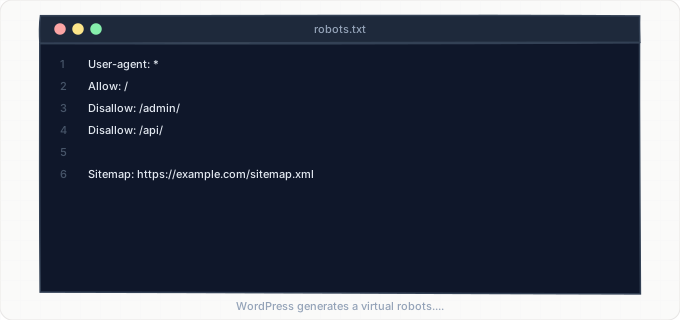
When Googlebot arrives at your WordPress site, it first checks robots.txt at your domain root. WordPress generates a virtual robots.txt through a PHP function rather than serving a static file, which means plugins and theme functions can modify it programmatically. The default WordPress robots.txt allows all crawlers and points to the sitemap, but security plugins frequently add restrictive rules that block access to /wp-admin/, /wp-includes/, and sometimes even /wp-content/uploads/ — the directory where all your media files live.
After reading robots.txt, Googlebot begins crawling pages. WordPress serves HTML that is generally well-structured, but the rendering pipeline matters. If your theme relies heavily on JavaScript for layout (common with page builders like Elementor, Divi, or WPBakery), Google must perform a second rendering pass. This two-pass indexing — first the raw HTML, then the JavaScript-rendered version — can delay full indexing by days or even weeks. Pages built with the native Gutenberg block editor render server-side and avoid this delay entirely.
WordPress also exposes content through its REST API at /wp-json/wp/v2/. While Googlebot does not typically crawl REST API endpoints for indexing purposes, poorly configured sites sometimes have REST API URLs appearing in sitemaps or internal links, creating confusion in Google's crawl queue.
WordPress Core Settings That Affect Indexing
The single most important indexing setting in WordPress lives at Settings > Reading. The checkbox labeled "Discourage search engines from indexing this site" adds a <meta name="robots" content="noindex, nofollow"> tag to every page and modifies robots.txt to include Disallow: /. This setting is intended for development and staging environments, but it gets left on in production more often than you would expect. Every WordPress indexing audit should start here.
Permalink structure, configured at Settings > Permalinks, determines the URL format for every post and page. The default structure uses plain query strings like /?p=123, which are crawlable but provide zero keyword signals to Google. The recommended structure for most sites is "Post name" (/%postname%/), which creates clean, readable URLs. If you change your permalink structure on an existing site, WordPress does not create automatic redirects for the old URLs. Every previously indexed URL will return a 404 unless you add redirect rules to .htaccess or use a plugin like Redirection.
The site address settings at Settings > General also matter. If your WordPress address and site address do not match, or if one uses www and the other does not, Google sees two different versions of every URL. WordPress handles www-to-non-www redirection through .htaccess RewriteRules, but misconfigurations here cause redirect loops that prevent crawling entirely.
WordPress also sends XML-RPC pingbacks when you publish new content. While the XML-RPC system at /xmlrpc.php is largely deprecated in favor of the REST API, the Settings > Writing screen has a "ping services" list that controls which services receive notifications. Adding Google's ping endpoint for sitemaps is no longer effective as Google deprecated sitemap ping in 2023, but many outdated guides still recommend it.
SEO Plugin Configuration: Yoast SEO and RankMath
Yoast SEO and RankMath are the two most popular WordPress SEO plugins, and both have extensive control over your indexing. They generate XML sitemaps, manage meta robots directives, set canonical URLs, and control how your content appears in search results.
Yoast SEO generates its sitemap at /sitemap_index.xml, which is a sitemap index containing links to individual sitemaps for posts, pages, categories, tags, author archives, and custom post types. You control which content types appear through Yoast > Settings > Content Types and Yoast > Settings > Categories & Tags. Each content type has a "Show in search results" toggle — turning this off adds a noindex directive to that entire content type and removes it from the sitemap. This is the number one cause of accidental noindexing in WordPress.
RankMath uses a similar approach but with a more granular interface. Its sitemap settings are at RankMath > Sitemap Settings, where each post type and taxonomy has its own tab. RankMath also has a per-page "Advanced" tab in the post editor where you can set individual pages to noindex, nofollow, or noarchive. A common mistake is setting a page to noindex during development and forgetting to change it back before publishing.
Both plugins set canonical URLs automatically. Canonical URL conflicts arise when:
- Both plugins are active simultaneously — never run two SEO plugins at once
- A caching plugin serves a stale version of the page with an outdated canonical tag
The sitemap generated by these plugins replaces the WordPress core sitemap. If both the core sitemap (/wp-sitemap.xml) and the plugin sitemap (/sitemap_index.xml) are active, Google may discover both and waste crawl budget processing duplicate entries. Yoast and RankMath both disable the core sitemap automatically, but deactivating the SEO plugin without removing its configuration can re-enable the core sitemap while leaving orphaned sitemap URLs in Google Search Console.
The .htaccess File and Server-Level Indexing Controls
The .htaccess file in your WordPress root directory is one of the most powerful and most misunderstood files affecting indexing. WordPress writes its own rewrite rules to this file for permalink handling, but plugins, hosting providers, and manual edits can add rules that block crawlers or create redirect chains.
The default WordPress .htaccess block checks if the requested file or directory exists, and if not, routes the request to index.php for WordPress to handle. Security plugins like Wordfence, Sucuri, and iThemes Security add their own rules above the WordPress block. These rules sometimes include IP-based blocking, rate limiting, or user-agent filtering that can inadvertently block Googlebot. If your security plugin has a "block suspicious user agents" feature, verify that Googlebot's user agent string is explicitly whitelisted.
Hosting providers also modify .htaccess. Managed WordPress hosts like WP Engine, Kinsta, and Flywheel add caching headers, GZIP compression rules, and sometimes redirect rules for their CDN. These are usually fine, but if your host forces HTTPS via .htaccess and your WordPress settings still reference HTTP URLs, you get a redirect chain:
- 1HTTP to HTTPS (via
.htaccess) - 2www/non-www normalization (via WordPress)
Each redirect in the chain costs crawl budget and adds latency.
To audit your .htaccess, download it via SFTP or your hosting file manager and review every rule block. Look for:
Deny from allrules that might block entire directoriesRewriteRulepatterns that redirect crawler user agentsHeader set X-Robots-Tagdirectives that add noindex at the server level
The X-Robots-Tag HTTP header is particularly sneaky because it does not appear in your page source — you can only see it in the HTTP response headers using curl or browser dev tools.
Plugin Conflicts and Theme Issues That Block Indexing
WordPress's plugin architecture means that any installed plugin can modify HTTP headers, inject meta tags, alter robots.txt, or change your sitemap. The most common indexing-breaking conflicts involve:
Caching plugins (WP Rocket, W3 Total Cache, LiteSpeed Cache) serving stale HTML that contains outdated meta robots tags or canonical URLs. When you change a page from noindex to index, the cached version may continue serving the noindex tag until the cache is purged. Always purge your full page cache after making any SEO-related change.
Membership and paywall plugins (MemberPress, Restrict Content Pro, WooCommerce Memberships) that wrap content in authentication checks. If the plugin hides content behind a login without providing a fallback for anonymous users, Googlebot sees either a login form or empty content. Some membership plugins have a "Show excerpt to search engines" option — enable it so Google can index a meaningful snippet.
Page builder plugins store content in custom database formats that WordPress's default the_content() function does not output. Elementor stores its layout data as post meta and renders it via JavaScript. If Elementor's CSS and JS files are blocked in robots.txt, Google cannot render the page and indexes a blank layout. The same applies to Divi, Beaver Builder, and WPBakery. Check Google Search Console's URL Inspection tool and click "View Crawled Page" to see exactly what Googlebot renders.
Themes can also interfere. Some themes include their own SEO features — meta description fields, Open Graph tags, or even sitemap generators — that conflict with your SEO plugin. Theme-generated meta tags can create duplicate title tags and description tags in your HTML head. Inspect your page source and search for duplicate <meta name="description"> or <meta name="robots"> tags. If your theme adds its own, disable that feature in the theme settings or switch themes.
WordPress REST API and Crawl Budget Optimization
The WordPress REST API exposes your content at /wp-json/wp/v2/posts, /wp-json/wp/v2/pages, and similar endpoints. While these are not intended for search engine consumption, they sometimes appear in Google's index if linked from your sitemap, your theme's JavaScript, or external sources. REST API responses return JSON, not HTML, so indexed API URLs display as raw data in search results.
To prevent REST API URLs from being indexed, add an X-Robots-Tag: noindex header to the REST API responses. You can do this with a small code snippet in your theme's functions.php or a custom plugin. Some SEO plugins handle this automatically, but verify by visiting a REST API URL and checking the response headers.
Crawl budget is a real concern for large WordPress sites. If you have thousands of posts, plus tag archives, category archives, date archives, author archives, and paginated versions of all of them, Google has to crawl tens of thousands of URLs. Many of these archive pages have thin content. Set the following to noindex in your SEO plugin settings:
- Tag archives — often contain only 1-2 posts
- Date archives — months where you published once
- Author archives — unnecessary on single-author blogs
This focuses crawl budget on your actual content.
WordPress generates feed URLs at /feed/, /comments/feed/, and per-category and per-tag feeds. These are valid discovery mechanisms and should remain crawlable, but they should not be indexed. Most SEO plugins add noindex to feed responses by default. Verify by visiting /feed/ and checking for a noindex directive in the XML header.
Finally, consider your site's response time. WordPress on shared hosting with many active plugins often has a Time to First Byte (TTFB) of 2-4 seconds. Googlebot interprets slow responses as a signal that the server is overloaded and reduces its crawl rate. Use server-level caching (Redis or Memcached object cache, page cache via your hosting provider) to bring TTFB under 500ms. This alone can dramatically increase how many pages Google crawls per day.
Step-by-Step Guide
Verify the "Discourage search engines" checkbox is unchecked
Log into your WordPress admin dashboard and navigate to Settings > Reading. Scroll down to the "Search engine visibility" section.
The checkbox labeled "Discourage search engines from indexing this site" must be unchecked for production sites. If it is checked, uncheck it and click Save Changes.
This single checkbox controls a site-wide noindex directive that completely prevents Google from indexing any page on your site. After unchecking, view your page source and confirm that <meta name="robots" content="noindex, nofollow"> no longer appears in the <head> section.
Configure your SEO plugin's sitemap and indexing settings
Yoast SEO: Go to Settings > Content Types and enable "Show in search results" for Posts and Pages. Under Categories & Tags, index categories but consider noindexing tags.
RankMath: Go to Sitemap Settings and toggle on each post type. In Titles & Meta, verify no content type has Robots Meta set to noindex.
Visit /sitemap_index.xml in a browser and confirm it loads valid XML linking to your content.
Set optimal permalink structure and implement redirects
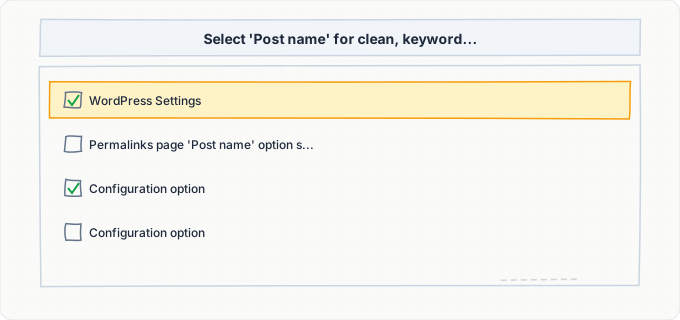
Navigate to Settings > Permalinks and select "Post name" as your permalink structure. This creates URLs like yourdomain.com/your-post-title/ which are clean, keyword-rich, and easy for Google to parse.
If you are changing from a different structure on an existing site:
- 1Install the Redirection plugin before making the change
- 2Switch the permalink structure and save
- 3The Redirection plugin will automatically log 404 errors from old URLs
- 4Set up redirect rules from the old patterns to the new ones
For example, if your old structure was /%year%/%monthnum%/%postname%/, create a regex redirect from ^/\d{4}/\d{2}/(.+)$ to /$1 to preserve link equity.
Audit robots.txt and .htaccess for crawler blocks
Visit yourdomain.com/robots.txt and verify there is no Disallow: / rule and that your sitemap URL is listed with a Sitemap: directive.
Download .htaccess via SFTP and check for user-agent blocking rules, IP restrictions affecting Google's 66.249.x.x range, and X-Robots-Tag headers from security plugins. If you find suspicious rules, disable security plugins one at a time to identify the source.
Submit your sitemap to Google Search Console
Log into Google Search Console and select your WordPress property. Navigate to Sitemaps in the left sidebar and enter your sitemap URL:
/sitemap_index.xmlif using Yoast or RankMath/wp-sitemap.xmlif using the WordPress core sitemap
Click Submit. Google will begin processing the sitemap, which usually takes 24-48 hours for the initial read.
After submission, monitor the Sitemaps report for common errors:
- URLs returning 404 (deleted posts still in sitemap)
- URLs blocked by robots.txt
- URLs with redirect chains
The Pages report will show you how many submitted URLs were indexed, excluded, or had errors.
Test page rendering with URL Inspection
In Google Search Console, use URL Inspection on your most important pages. Click "Test Live URL" and verify the HTTP response is 200, indexing status shows the URL can be indexed, and the rendered screenshot under "View Crawled Page" matches your browser.
If the rendered page shows missing content or empty sections, you have a JavaScript rendering issue from blocked resources or page builder conflicts.
Use IndexBolt to accelerate indexing for remaining pages
After completing all the technical fixes above, some pages may still take weeks to get indexed through Google's natural crawl cycle, especially on newer or lower-authority WordPress sites.
Use IndexBolt to submit these URLs directly for indexing:
- 1Export your sitemap URLs (find them in your
sitemap_index.xmlby clicking each sub-sitemap) - 2Paste them into IndexBolt's submission form
- 3Let our API push them through the Google Indexing pipeline
For time-sensitive content like new product pages, event announcements, or breaking news, use IndexBolt's instant indexing to jump the queue and get pages indexed within hours instead of days.
Common Issues & How to Fix Them
"Discourage search engines" checkbox is still checked
Cause: This checkbox at Settings > Reading was turned on during site development or migration and never turned off. Some hosting providers enable it by default on staging environments, and it persists when you push staging to production. Automated WordPress installers from hosting control panels sometimes also leave this checked.
Fix: 1. Go to **Settings > Reading**, uncheck **"Discourage search engines from indexing this site,"** and click **Save Changes** 2. Visit your homepage source code and confirm the **noindex** meta tag is gone 3. Check `robots.txt` (`yourdomain.com/robots.txt`) to verify it no longer contains `Disallow: /` 4. **Clear any caching plugin cache** after making this change so the updated HTML is served immediately
SEO plugin is noindexing an entire post type or taxonomy
Cause: In Yoast SEO, the "Show in search results" toggle under Settings > Content Types was turned off for a post type. In RankMath, the Robots Meta for a content type was set to noindex under Titles & Meta. This adds a noindex directive to every page of that type and removes them from the sitemap, even if individual posts have valuable content.
Fix: Open your SEO plugin settings and review every post type and taxonomy. - **Yoast:** Go to **Settings > Content Types** and enable **"Show in search results"** for each type you want indexed - **RankMath:** Go to **Titles & Meta > Post Types** and set the Robots Meta to **"index"** After changing, regenerate your sitemap by visiting it in a browser and confirming the affected URLs now appear. **Resubmit the sitemap** in Google Search Console.
Permalink structure change caused mass 404 errors
Cause: Changing the permalink structure at Settings > Permalinks updates all internal links but does not create redirects for the old URL patterns. Any external links, bookmarks, or previously indexed URLs pointing to the old structure now return 404 errors. Google will eventually deindex these pages.
Fix: 1. Install the **Redirection** plugin (or use your `.htaccess` directly) to create pattern-based **301 redirects** from the old URL structure to the new one 2. If your old structure was `/%category%/%postname%/`, create a redirect mapping old URLs to the new `/%postname%/` structure 3. Monitor **404 errors** in Google Search Console's Pages report 4. Add individual redirects for any URLs that the pattern-based rule missed Over time, Google will update its index to reflect the new URL structure.
Multiple plugins generating conflicting sitemaps
Cause: Running two SEO plugins simultaneously (e.g., Yoast and RankMath), or having an SEO plugin alongside a dedicated sitemap plugin like Google XML Sitemaps, creates multiple sitemap files. If robots.txt or Google Search Console references both sitemaps, Google processes duplicate URL entries and may detect them as suspicious. Some all-in-one security plugins like All In One WP Security also generate their own sitemaps.
Fix: **Use only one plugin for sitemap generation.** If you use Yoast or RankMath, disable or remove any standalone sitemap plugins. 1. Check `robots.txt` for multiple `Sitemap:` lines and remove duplicates 2. In Google Search Console, go to **Sitemaps** and remove any outdated or duplicate submissions 3. Verify that the WordPress core sitemap at `/wp-sitemap.xml` is disabled by your SEO plugin (both Yoast and RankMath do this automatically when active)
Caching plugin serving stale noindex pages
Cause: You changed a page from noindex to index (or fixed any meta tag issue), but your caching plugin (WP Rocket, W3 Total Cache, LiteSpeed Cache, etc.) is still serving the old cached HTML containing the noindex directive. Page caches can persist for hours or days depending on your configuration.
Fix: **Purge your entire page cache** after any SEO-related change: - **WP Rocket:** Settings > WP Rocket > **"Clear Cache"** - **W3 Total Cache:** Performance > Dashboard > **"Empty All Caches"** - **LiteSpeed Cache:** LiteSpeed Cache > Toolbox > **"Purge All"** If you use a CDN like **Cloudflare**, also purge the CDN cache from the Cloudflare dashboard. After purging, verify by visiting the page in an **incognito browser window** and viewing the source to confirm the correct meta tags are present.
Heavy theme and page builder slowing down crawl rate
Cause: Complex WordPress themes with large CSS/JS bundles and page builders like Elementor or Divi increase page load time significantly. When Time to First Byte exceeds 2 seconds, Googlebot reduces its crawl rate to avoid overloading your server. On shared hosting, this can drop your daily crawl volume from hundreds of pages to just a few dozen.
Fix: Enable **server-side caching** to improve response times: 1. Install a caching plugin and configure it for **full-page caching** 2. Use an **object cache** (**Redis** or **Memcached**) if your host supports it 3. **Minify and combine** CSS/JS files through your caching plugin 4. Consider switching to a managed WordPress host (**WP Engine**, **Kinsta**, **Cloudways**) that includes server-level caching and CDN Verify your crawl rate in Google Search Console under **Settings > Crawl Stats**, which shows daily crawl requests, download size, and response times.
Pro Tips
WordPress sites can have hundreds or thousands of pages waiting for Google to discover them. IndexBolt lets you submit your WordPress URLs directly for indexing, bypassing the wait for Googlebot's next crawl. Whether you just fixed a noindex issue or published a batch of new posts, get them into Google's index within hours instead of weeks.
100 free credits. No credit card required. See results in under 24 hours.
Frequently Asked Questions
How long does it take for Google to index a new WordPress page?+
For **established WordPress sites** with good crawl rates, new pages typically appear in Google within **2-7 days** after publication. For **newer sites** or sites with low domain authority, it can take **2-6 weeks**. If your page is not indexed after 4 weeks, there is likely a technical issue blocking crawling or indexing. Using **IndexBolt** can reduce this timeline to **hours** for urgent pages.
Should I use the WordPress core sitemap or my SEO plugin's sitemap?+
Use your **SEO plugin's sitemap** if you have Yoast SEO or RankMath installed. These plugins generate more comprehensive sitemaps with better control over which content types are included, and they **automatically disable the core sitemap** to prevent duplicates. The WordPress core sitemap at `/wp-sitemap.xml` is adequate for simple sites without an SEO plugin, but it lacks the granular controls that Yoast and RankMath provide.
Can I have too many pages in my WordPress sitemap?+
A single sitemap file can contain up to **50,000 URLs** per the sitemap protocol spec. Both Yoast and RankMath split large sitemaps into sub-sitemaps of **1,000 URLs** each (configurable). The real concern is not the sitemap size but the **quality of URLs** in it. If your sitemap contains thousands of thin archive pages, tag pages with one post, or paginated URLs, Google's **crawl budget** is wasted on low-value pages. Keep your sitemap lean by **noindexing thin content types**.
Does changing my WordPress theme affect my Google rankings?+
Changing themes can **absolutely affect indexing and rankings**. A new theme may: - Alter your **page structure** and **heading hierarchy** - Modify **internal link patterns** - Add or remove **structured data** - Introduce different **JavaScript rendering** behavior If the new theme is slower or uses heavy JavaScript, Google may crawl and index your pages less effectively. **Always test a theme change on a staging site first** and monitor Google Search Console's Pages report closely after switching.
Why are my WordPress tag pages showing as 'Discovered but not indexed'?+
Google frequently classifies tag archive pages as **low-value** because they contain the same post excerpts that appear on other archive pages (category pages, author pages, the blog homepage). When Google determines that a page does not add unique value, it discovers the URL but **chooses not to index it**. The best practice is to **noindex tag archives** in your SEO plugin settings unless your tags have substantial unique content. This actually helps your important pages get indexed faster by **concentrating crawl budget**.
My WordPress site uses a page builder. Does that affect indexing?+
Page builders like **Elementor**, **Divi**, and **WPBakery** store content in their own format and render it via JavaScript on the frontend. Google can render JavaScript but does so in a **delayed second pass**, which means pages built with page builders may take longer to be fully indexed. More critically, if your `robots.txt` blocks the page builder's CSS or JS files (some security plugins do this), Google **cannot render the page at all** and may index a blank layout. Test with Google Search Console's **URL Inspection** tool to verify that Google sees the fully rendered page.