Shopify Google Indexing: Complete Guide to Getting Your Store Found in Search
Shopify handles much of the technical SEO work for you, but its opinionated URL structure and limited customization options create unique indexing challenges. This guide covers everything you need to know to get every product, collection, and page in your Shopify store indexed by Google.
In this guide
Shopify powers millions of ecommerce stores and handles SSL, sitemaps, canonical tags, and clean HTML automatically. However, its hands-off approach creates indexing challenges you need to understand.
The biggest issue is duplicate product URLs — every product is accessible at /products/product-name and /collections/collection-name/products/product-name, consuming crawl budget. You also cannot edit robots.txt through the admin (only via robots.txt.liquid) or exclude specific URLs from the auto-generated sitemap. This guide covers Shopify's automatic SEO features and the platform limitations you need to work around.
How Shopify's Automatic SEO Features Work
Shopify includes several built-in SEO features that require no configuration. Understanding what they do (and what they do not do) is essential for diagnosing indexing issues.
Automatic SSL: Every Shopify store gets an SSL certificate. All HTTP requests redirect to HTTPS, eliminating the common duplicate content issue from mixed HTTP/HTTPS URLs.
Auto-generated sitemap: Shopify generates a sitemap at yourdomain.com/sitemap.xml. This is actually a sitemap index that links to sub-sitemaps:
sitemap_products_1.xmlsitemap_collections_1.xmlsitemap_pages_1.xmlsitemap_blogs_1.xml
Every published product, collection, page, and blog post is included automatically. You cannot exclude individual URLs from the sitemap through the Shopify admin. To exclude a URL, you must use meta robots tags (noindex) on the page itself.
Canonical tags: Shopify adds canonical tags to every page. Product pages canonicalize to /products/product-name regardless of how they are accessed. Collection pages canonicalize to /collections/collection-name. Blog posts canonicalize to /blogs/blog-name/post-name. This is generally correct but can cause issues with third-party apps that create their own page types.
Structured data: Shopify generates JSON-LD for product pages automatically, including price, availability, and review data. This helps Google understand your product pages and can enable rich results in search.
Default robots.txt: Shopify auto-generates a robots.txt that blocks internal search results, checkout pages, cart pages, and admin areas while allowing all product and collection pages. The default is well-configured for most stores, but you may need to customize it for specific use cases.
The Duplicate Product URL Problem
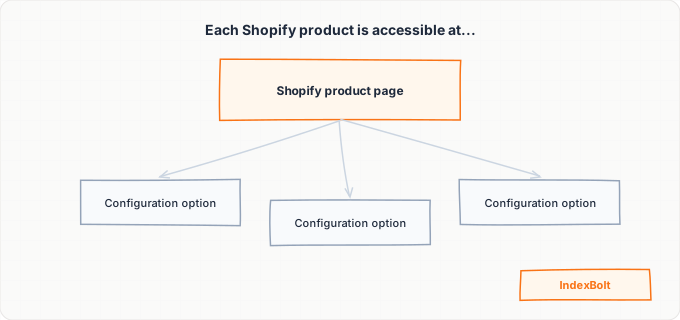
Shopify's most significant indexing quirk is how it handles product URLs within collections. When you browse a collection and click a product, the URL is /collections/collection-name/products/product-name. But the canonical URL is /products/product-name. This means every product has at least two valid URLs.
For example, a red t-shirt in the "Summer Sale," "T-Shirts," and "New Arrivals" collections is discoverable at four different URLs:
/products/red-t-shirt(canonical)/collections/summer-sale/products/red-t-shirt/collections/t-shirts/products/red-t-shirt/collections/new-arrivals/products/red-t-shirt
Shopify adds a canonical tag pointing to /products/red-t-shirt on all four, which tells Google which version to index. However, Google still has to crawl all four URLs to discover the canonical tag, which wastes crawl budget.
The impact is proportional to your catalog size. A store with 500 products and 20 collections could have 10,000+ crawlable product URLs even though only 500 are unique. Google will eventually consolidate these, but the process takes time.
To mitigate this, customize your robots.txt.liquid file to disallow collection-prefixed product URLs. Add Disallow: /collections/*/products to prevent Googlebot from crawling the duplicate paths. This is safe because your sitemap and internal links point to the canonical /products/ URLs.
Customizing robots.txt with robots.txt.liquid
Since 2021, Shopify allows you to customize your robots.txt by creating or editing the robots.txt.liquid file in your theme. This file lives in the Templates folder and uses Liquid template syntax to generate the robots.txt output.
To edit it, go to Online Store > Themes > Actions > Edit Code, then look in the Templates folder for robots.txt.liquid. If it does not exist, you can create it. The file should start with Shopify's default robots.txt content and then add your custom rules.
The most common customizations include:
- Blocking collection-prefixed product URLs as described above
- Blocking URL parameters that third-party apps add (e.g.,
?variant=12345678) - Blocking app-generated pages that should not be indexed (review apps, wishlist apps)
- Adding your sitemap URL for crawlers that discover
robots.txtfirst
Important caveat: Shopify caches robots.txt aggressively. After editing robots.txt.liquid, it may take up to 24 hours for changes to appear at yourdomain.com/robots.txt. Verify your edits by previewing the theme or using the Shopify CLI.
Be cautious with these edits. A syntax error in robots.txt.liquid can result in a blank or malformed robots.txt, which Googlebot treats as "allow everything" — potentially exposing internal pages you intended to block.
Shopify Apps and Their Impact on Indexing
Shopify's app ecosystem is both a strength and a potential indexing hazard. Apps can create new page types, inject meta tags, add JavaScript-rendered content, and modify your theme's <head> section.
Review apps (Judge.me, Loox, Stamped) typically inject review content via JavaScript widget injection, which means Googlebot must render the JavaScript to see reviews. If the app's JavaScript is slow or has errors, review content may not be indexed. Some review apps offer a server-side rendering option — use it if available.
Page builder apps (Shogun, GemPages, PageFly) create custom landing pages, product pages, and collection pages. These are rendered via the app's JavaScript and may not be included in Shopify's auto-generated sitemap. Check whether your page builder's URLs appear in /sitemap.xml. If not, submit them manually through Google Search Console or create an additional sitemap.
SEO apps (SEO Manager, Smart SEO, Plug In SEO) can add meta tags, edit structured data, and manage redirects. While generally helpful, running multiple SEO apps simultaneously can create conflicting meta tags. If two apps both inject a canonical tag, your page ends up with two different canonical URLs. Use only one SEO app at a time.
Translation apps (Langify, Weglot, Translation Lab) create alternate language versions at subfolders like /fr/ or /de/. These apps should add hreflang tags to connect the language versions. If hreflang tags are missing or misconfigured, Google may index the wrong language version. Verify by viewing your page source and checking for <link rel="alternate" hreflang="x"> tags.
Handling Password Protection and Store Launch
Shopify stores have a password protection feature that is enabled by default on new stores and trial accounts. While active, your entire store returns a 401 Unauthorized status code to all visitors, including Googlebot. Nothing on your store can be indexed while this is active.
To disable password protection, go to Online Store > Preferences and toggle off the password protection option. You need an active Shopify plan (not a free trial) to remove it. Some merchants do not realize their store is still password-protected because they access it while logged in and never see the password page.
If you are still building your store, keep password protection on but understand that indexing will not begin until you remove it. There is no way to allow only Googlebot through.
When you launch your store:
- 1Remove password protection
- 2Submit your sitemap to Google Search Console immediately
- 3Use IndexBolt to push your highest-priority product and collection pages for immediate indexing
Without submitting the sitemap, it can take 3-7 days for Google to discover your site for the first time.
Also be aware that Shopify generates a yourdomain.myshopify.com URL for every store, even with a custom domain connected. The myshopify.com domain automatically redirects to your custom domain, but any links pointing to the myshopify.com domain go through a redirect hop that wastes crawl budget.
Monitoring Indexing with Google Search Console
Google Search Console is your primary tool for monitoring how Google indexes your Shopify store. After verifying your domain (Shopify supports DNS TXT verification and HTML tag verification through Online Store > Preferences > Google Search Console), submit your sitemap and begin monitoring.
The Pages report shows the indexing status of every URL Google has discovered. For Shopify stores, common status categories include:
- "Indexed" — the page is in Google's index and can appear in search results. This is what you want for all product, collection, and content pages.
- "Crawled - currently not indexed" — Google crawled the page but decided not to index it, usually because the content is thin or duplicate. Common for Shopify tag pages (
/collections/collection-name/tag-name).
- "Discovered - currently not indexed" — Google knows the URL exists but has not crawled it yet. On new or low-authority stores, products can sit in this state for weeks. This is where IndexBolt is most valuable.
- "Excluded by robots.txt" — the URL is blocked by your
robots.txtrules. Expected for checkout pages, cart pages, and collection-prefixed product URLs you blocked.
- "Duplicate, submitted URL not selected as canonical" — Google found a duplicate and chose a different URL as canonical. Common for collection-prefixed product URLs.
Monitor the Pages report weekly after launching a new store or making significant changes. Pay attention to any spike in "Not indexed" pages, which could indicate a theme update or app installation that introduced noindex tags or broke canonical tags.
Step-by-Step Guide
Remove password protection and verify store accessibility
In your Shopify admin, go to Online Store > Preferences and scroll to the Password Protection section. If the toggle is enabled, disable it and save.
Then verify accessibility in an incognito browser window:
- 1Visit your store's URL — you should see your storefront, not a password page
- 2Test that
yourdomain.com/robots.txtreturns a validrobots.txtfile - 3Test that
yourdomain.com/sitemap.xmlreturns your sitemap index
If either returns an error or password page, your store is not accessible to Google.
Connect Google Search Console and submit your sitemap
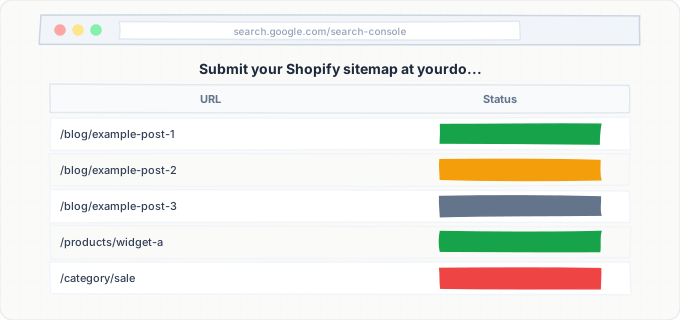
- 1Go to Google Search Console and add your Shopify store as a property (use the URL prefix method with your custom domain including
https://) - 2For verification, go to Online Store > Preferences and paste the verification meta tag in the Google Search Console field
- 3After verification, go to Sitemaps in Search Console and submit
yourdomain.com/sitemap.xml
Google will begin processing your sitemap within 24-48 hours.
Review and optimize meta titles and descriptions for key pages
For every product, go to the product editor in Shopify admin, scroll to the bottom, and click "Edit website SEO." This expands fields for Page title and Meta description.
Write unique, keyword-rich titles under 60 characters and descriptions under 155 characters for each product. Do the same for:
- Collections: Collections > Edit Collection > scroll to SEO
- Pages: Pages > Edit Page > scroll to SEO
Shopify auto-generates these from the product/collection/page title if you leave them blank, but auto-generated descriptions are usually just the first ~155 characters of your content, which is rarely optimized for search intent.
Customize robots.txt.liquid to block duplicate URLs
Go to Online Store > Themes > Actions > Edit Code. In the Templates folder, find or create robots.txt.liquid.
Add the following Disallow rules after the existing default rules:
Disallow: /collections/*/products— prevents Googlebot from crawling collection-prefixed product URLsDisallow: /search— blocks internal search result pages (thin content)
Save the file and wait up to 24 hours for the cached robots.txt to update. Verify the changes by visiting yourdomain.com/robots.txt after the cache clears.
Audit third-party apps for indexing conflicts
List all installed Shopify apps in your admin under Apps. For each app that creates customer-facing pages (review widgets, page builders, wishlists, loyalty programs), visit the pages they create and view the page source.
Check for:
- 1Duplicate canonical tags — there should be only one
<link rel="canonical">per page - 2Noindex meta tags that might be preventing indexing
- 3Whether the app's pages appear in your sitemap
If an app creates pages not in the sitemap, submit those URLs manually through Google Search Console or use IndexBolt to ensure they get indexed.
Set up proper redirects for changed URLs
When you change a product handle (URL slug) in Shopify, the platform automatically creates a 301 redirect from the old URL to the new one. However, if you delete a product, no redirect is created. Go to Online Store > Navigation > URL Redirects to manage your redirects. Add redirects for any deleted products that had significant traffic or backlinks. Also check for redirect chains — a product whose handle was changed multiple times may have a chain like /products/old > /products/older > /products/current. Simplify these to single-hop redirects pointing directly to the final URL.
Submit priority pages through IndexBolt for faster indexing
After completing the technical optimizations above, identify your highest-value pages that are not yet indexed. In Google Search Console, go to Pages and filter by "Discovered - currently not indexed" and "Crawled - currently not indexed." Export these URLs and submit them through IndexBolt. Focus on product pages for your best sellers, collection pages for high-traffic categories, and any new product launches. IndexBolt will push these URLs through the Google Indexing pipeline, getting them into search results in hours instead of the weeks it might otherwise take on a newer Shopify store.
Common Issues & How to Fix Them
Password protection is still enabled on the store
Cause: New Shopify stores and stores on trial plans have password protection enabled by default. Merchants who access their store while logged into the Shopify admin may not realize the password page is showing to everyone else, including Googlebot. The password page returns a 401 status code that prevents any indexing.
Fix: Go to Online Store > Preferences and disable password protection. You need an active paid Shopify plan to do this. After disabling, test in an incognito window and verify that /robots.txt and /sitemap.xml are publicly accessible. Submit your sitemap to Google Search Console to accelerate initial discovery.
Duplicate product URLs from collection paths consuming crawl budget
Cause: Shopify creates a unique URL for each product within each collection it belongs to (/collections/x/products/y). While Shopify sets the canonical to /products/y, Googlebot still crawls all collection-prefixed URLs. A store with 200 products across 15 collections can generate 3,000+ crawlable duplicate URLs.
Fix: Edit your robots.txt.liquid file to add Disallow: /collections/*/products. This blocks Googlebot from crawling the duplicate paths while keeping the canonical /products/ URLs fully accessible. Verify that your internal links (navigation, homepage featured products, etc.) link to the canonical /products/ URLs rather than the collection-prefixed versions.
App-generated pages not included in the Shopify sitemap
Cause: Third-party Shopify apps (page builders, review apps, loyalty programs) often create their own page types that exist outside Shopify's standard pages, products, and collections. Shopify's auto-generated sitemap only includes standard content types, so app-generated pages are invisible to Google unless discovered through internal links.
Fix: Identify all URLs created by your apps by reviewing each app's settings and visiting its public-facing pages. For page builder apps (Shogun, GemPages), check if the app has its own sitemap you can submit to Google Search Console. For other app pages, submit individual URLs through Google Search Console's URL Inspection tool or batch-submit them through IndexBolt. Ensure these pages are linked from your main navigation or footer so Google can discover them through normal crawling as well.
Unnecessary redirect chains from URL handle changes
Cause: Each time you change a product or collection handle (URL slug) in Shopify, the platform creates a redirect from the old URL to the new one. If you change the handle multiple times, a chain builds up: /products/v1 redirects to /products/v2, which redirects to /products/v3. Each redirect adds latency and uses crawl budget. After 5+ redirects in a chain, Googlebot may stop following.
Fix: Go to Online Store > Navigation > URL Redirects and search for the affected product. Delete the intermediate redirects and create a single redirect from the original URL to the current URL. For bulk cleanup, export your redirects as a CSV, clean up chains in a spreadsheet, and re-import. Limit handle changes to avoid creating new chains.
Shopify's internal search pages getting indexed
Cause: Shopify's search functionality at /search?q=keyword generates unique URLs for every search query. If external links or internal site links point to search result pages, Google may discover and attempt to index them. These pages have thin, duplicate content (just filtered versions of your existing product listings) and dilute your crawl budget.
Fix: Add Disallow: /search to your robots.txt.liquid file to block search result pages from being crawled. Shopify's default robots.txt already blocks some search paths, but verify by checking your actual robots.txt output. Additionally, ensure that any search result pages that were already indexed are noindexed by adding a meta robots noindex tag through your theme's search.liquid template.
Pro Tips
Shopify's hands-off SEO approach means new products can wait weeks to appear in Google, especially for newer stores with limited crawl budget. IndexBolt lets you submit product and collection URLs directly for indexing, so your latest inventory shows up in search results within hours of going live. Stop waiting for Googlebot — get your products found now.
100 free credits. No credit card required. See results in under 24 hours.
Frequently Asked Questions
Can I edit my Shopify sitemap to exclude specific pages?+
No, Shopify's auto-generated sitemap cannot be directly edited or customized. It automatically includes all published products, collections, pages, and blog posts. To prevent specific pages from being indexed, add a noindex meta tag to those pages through your theme code or a Shopify SEO app. The pages will still appear in the sitemap, but Google will respect the noindex directive and not index them.
Why are my Shopify products showing as 'Discovered - currently not indexed'?+
This status means Google knows the URL exists (from your sitemap or internal links) but has not crawled it yet. This is common for new Shopify stores with low domain authority or stores with large catalogs. Google prioritizes crawling based on perceived page importance, so new stores with few backlinks get lower priority. Submit your most important product URLs through IndexBolt to bypass the queue and get them indexed immediately.
Does Shopify automatically handle canonical tags correctly?+
Yes, for standard content types. Shopify sets canonical tags on product pages to the /products/ URL (not the /collections/x/products/y variant), on collection pages to the /collections/ URL, and on blog posts to the /blogs/ URL. However, third-party apps that create custom page types may not have proper canonical tags. Always verify canonical tags on app-generated pages by viewing the page source and searching for rel="canonical".
How do I fix duplicate content issues between product variants on Shopify?+
Shopify product variants (sizes, colors, etc.) are handled on a single product page with a variant parameter (?variant=123456). This is not a separate URL from Google's perspective because the canonical tag always points to the base product URL without the variant parameter. If you have separate product listings for each variant (e.g., a separate product for each color), consolidate them into a single product with variants to eliminate true duplicate content.
Will switching Shopify themes affect my Google indexing?+
Switching themes can affect indexing if the new theme has a different HTML structure, removes structured data that the old theme provided, or introduces JavaScript-heavy rendering that the old theme did not use. Before switching, test the new theme on a preview to ensure all pages render correctly. After switching, use Google Search Console's URL Inspection tool to verify that your key pages render properly for Googlebot. Monitor the Pages report for any changes in indexing status over the following 2-4 weeks.
How long after launching my Shopify store will products appear in Google?+
For a brand-new Shopify store with no existing backlinks, products typically begin appearing in Google 1-4 weeks after launching if you submit your sitemap to Google Search Console on day one. High-authority stores that add new products may see them indexed within days. The fastest option is using IndexBolt immediately after publishing new products, which can get them indexed in hours regardless of your store's authority.