BigCommerce Google Indexing: The Complete Guide to Getting Your Store in Search Results
Leverage BigCommerce's built-in SEO features while avoiding faceted search traps and thin content pages
In this guide
BigCommerce ships with strong SEO defaults -- auto-generated sitemaps, canonical tags, microdata markup, customizable robots.txt, and native 301 redirects. But those basics are not enough for competitive product keywords, and the platform has blind spots that silently undermine indexing.
Faceted search generates parameter-laden URLs that balloon your indexable page count. Brand pages often have thin content. Out-of-stock product handling creates SEO tension. This guide covers BigCommerce's admin settings, Stencil theme customizations, API-driven SEO for large catalogs, and the specific indexing problems unique to the platform.
BigCommerce's Built-In SEO Advantages
BigCommerce provides several SEO features out of the box that many other platforms require plugins or custom development to achieve. Understanding what is already handled helps you focus your optimization effort on the areas that need manual attention.
Automatic XML sitemaps are generated at /xmlsitemap.php and include all published products, categories, brands, and content pages. The sitemap updates automatically when you add, remove, or modify products. Unlike platforms where you must install an extension or manually regenerate the sitemap, BigCommerce handles this transparently. The sitemap respects product visibility settings -- products set to "hidden" are excluded.
Canonical URLs are automatically added to every page. BigCommerce uses the product's direct URL (without category prefix) as the canonical, so even if a product is accessible through multiple category paths (/shoes/running/nike-air/ and /brands/nike/nike-air/), the canonical tag consistently points to the product's primary URL (/nike-air/). This is configured correctly by default and rarely needs manual intervention.
Microdata (Schema.org structured data) is embedded in BigCommerce's Stencil themes. Product pages include Product schema with name, price, availability, SKU, and review ratings. Category pages include BreadcrumbList schema. This structured data enables rich results in Google search (price display, star ratings, availability badges) without installing any additional apps.
BigCommerce also provides native 301 redirect management under Server Settings > 301 Redirects. When you change a product's URL, BigCommerce automatically creates a 301 redirect from the old URL. You can also create manual redirects with CSV import for bulk operations.
SSL is included on all BigCommerce plans and applied site-wide. Google uses HTTPS as a ranking signal, and BigCommerce ensures every page is served over HTTPS without mixed content issues. The platform also provides CDN hosting via Akamai, which delivers fast page load times globally -- an important factor for both user experience and crawl efficiency.
Product and Category Meta Field Optimization
While BigCommerce generates default page titles and meta descriptions from your product names and descriptions, the defaults are rarely optimal for competitive search. You need to customize metadata for every product and category that matters to your business.
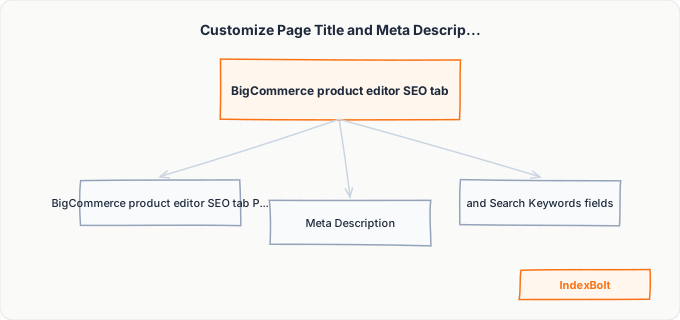
For products, navigate to Products > [Product Name] > SEO. Here you will find three fields: "Page Title" (the HTML <title> tag), "Meta Description," and "Search Keywords" (BigCommerce's internal search, not Google). The Page Title has a character limit of 255, but keep it under 60 characters for proper display in search results. Use the format: [Primary Keyword] - [Secondary Benefit] | [Store Name]. For example: "Wireless Running Earbuds - Sweatproof IP68 | SoundGear."
The Meta Description should be 150-160 characters and include a compelling reason to click. BigCommerce auto-generates a meta description from the first part of your product description if you leave this field blank, but auto-generated descriptions are almost always suboptimal -- they truncate mid-sentence and include formatting artifacts from the rich text editor.
For categories, go to Products > Product Categories > [Category] > SEO. Category page titles and descriptions are even more neglected than product metadata, yet category pages often rank for high-volume head terms ("running shoes," "wireless earbuds"). Write unique category descriptions (placed at the top or bottom of the category page using the Description field in the category editor) and custom meta descriptions.
BigCommerce also generates brand pages at /brands/[brand-name]/. These pages list all products from a specific brand. By default, brand pages have thin content -- just a product grid with no descriptive text. Navigate to Products > Brands > [Brand] and add a brand description, page title, and meta description. If you carry many brands and the brand pages are too thin to provide value, consider adding noindex to brand pages using a Script Manager injection or theme customization.
For stores with hundreds or thousands of products, manually editing metadata is impractical. Use the BigCommerce API (PUT /v3/catalog/products/{id}) to update SEO fields programmatically. Create a spreadsheet with product IDs, optimized titles, and meta descriptions, then write a script to batch-update via the API.
Handling Faceted Search and Parameter URLs
BigCommerce's faceted search (enabled under Products > Product Filtering) allows customers to filter category pages by attributes like price, brand, rating, color, and size. Each filter selection modifies the URL by appending parameters: /shoes/?brand=nike&price=50to100&color=black.
The indexing problem is familiar: every filter combination generates a unique URL with thin, duplicate content (a subset of the category page's products). Unlike Magento where the filter URL explosion can reach millions, BigCommerce's faceted search URLs are somewhat contained because the platform uses a cleaner parameter structure. However, a category with 5 filter types and 10 options each still generates thousands of possible URL combinations.
BigCommerce's approach to this is mixed. The platform adds canonical tags to filtered pages pointing back to the base category URL, which is correct behavior. However, BigCommerce does not add noindex to filtered pages by default, and the URLs are not blocked in robots.txt. This means Googlebot can discover and attempt to index these pages, even though the canonical tag should theoretically prevent them from appearing in search results.
To strengthen your defense, customize your robots.txt (Server Settings > Robots.txt, available on Plus plans and above). Add Disallow rules for common filter parameters: Disallow: /*?brand=, Disallow: /*?price=, etc. Be careful not to block legitimate query parameters used by BigCommerce's internal systems (like ?setCurrencyId= for multi-currency stores).
For stores on the Standard plan where robots.txt customization is not available, the canonical tags alone provide reasonable protection. Monitor Google Search Console's Coverage report for any filtered URLs that slip through and appear as indexed pages. If you find indexed filter URLs, submit them for removal using Search Console's Removals tool while the canonical tags work to consolidate them.
BigCommerce's headless storefront option (using the Storefront API with a custom frontend) gives you full control over faceted search URL handling. If you are building a headless BigCommerce store, implement AJAX-based filtering that does not modify the URL at all, eliminating the filter URL problem entirely.
Managing Out-of-Stock Products and URL Lifecycle
How you handle out-of-stock products has significant indexing implications. BigCommerce gives you several options for out-of-stock product visibility, and each one affects your SEO differently.
Option 1: Keep the product page live with an "Out of Stock" message. This is the best approach for products that will be restocked. The page retains its accumulated search equity, and when the product is available again, it is ready to sell immediately. BigCommerce lets you control the out-of-stock message under Products > [Product] > Availability. If Google Shopping disapproves the product due to availability, the organic listing can remain.
Option 2: Hide the product from the storefront. Under Products > [Product], set Visibility to "Hidden." This removes the product from category pages, search results, and the sitemap, but the URL still resolves (it is accessible via direct link). Because the product is removed from the sitemap and internal links, Google will eventually de-index it as it receives no incoming signals. This approach is appropriate for permanently discontinued products that you might reinstate later.
Option 3: Redirect the product URL. If a product is permanently discontinued and has a direct replacement, create a 301 redirect from the old product URL to the replacement product. Navigate to Server Settings > 301 Redirects, enter the old URL path, and set the destination to the replacement product. This transfers accumulated search equity to the new product.
Option 4: Delete the product entirely. This returns a 404 for the URL. Only do this if the product has no search equity worth preserving. Deleted product URLs should be 301 redirected to the most relevant category page to capture any residual traffic.
BigCommerce's automatic 301 redirects handle URL changes when you edit a product's URL field in the admin. However, if you delete a product without setting up a redirect first, no automatic redirect is created. Also, if you change a product's URL via the API rather than the admin panel, the automatic redirect may not be triggered depending on which API endpoint you use. Always verify redirects are in place after API-driven URL changes.
Stencil Theme SEO Customizations
BigCommerce's Stencil theme framework uses Handlebars templates that you can customize for SEO improvements beyond what the admin panel offers. These customizations require editing theme files and using the Stencil CLI for local development.
The most impactful theme customization is adding or improving structured data. While BigCommerce's default Stencil themes include basic Product and BreadcrumbList schema, you can add additional schema types by editing the Handlebars templates. For example, adding FAQPage schema to product pages that have a Q&A section, adding LocalBusiness schema to your contact page, or enhancing the Product schema with additional fields like brand, gtin, and mpn.
Meta tag control in Stencil templates allows you to add conditional noindex tags. Open the theme's templates/layout/base.html file and add logic to inject a noindex meta tag on specific page types. For example, you can noindex all pages with the search results template, tag pages, or pages with fewer than a threshold number of products. This level of control is not available in the BigCommerce admin panel.
BigCommerce's Script Manager (Storefront > Script Manager) allows you to inject JavaScript without editing theme files. While primarily used for analytics and marketing tags, you can use it to add JSON-LD structured data dynamically. However, be aware that Googlebot must execute JavaScript to see Script Manager injections, which means the structured data may not be processed during Google's initial HTML parse. For reliable structured data, embed it directly in Handlebars templates rather than injecting it via Script Manager.
Page speed optimization at the theme level includes lazy loading for images below the fold, deferred loading of non-critical JavaScript (particularly third-party apps and chat widgets), and proper use of BigCommerce's image optimization API (using the getImageSrcset Handlebars helper for responsive images). These improvements directly impact both Core Web Vitals scores and Googlebot's crawl efficiency.
Step-by-Step Guide
Audit Your Store's Current Indexing Status
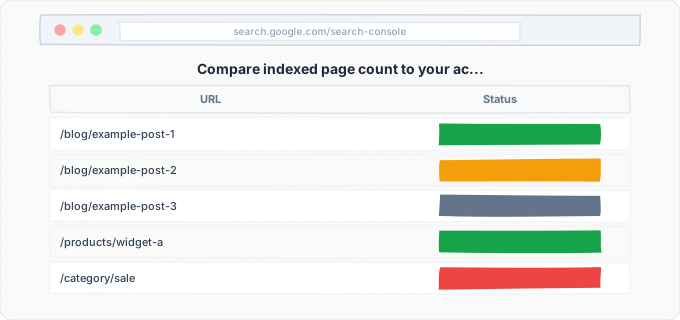
Before making changes, check your current indexing status. Open Google Search Console and review the Index Coverage report. Note the total number of indexed pages and compare it to the number of products, categories, and content pages in your BigCommerce store. If the indexed count is significantly higher than your actual page count, you likely have filter URLs or other duplicate pages in the index. If the indexed count is much lower, Google has not discovered all your content. Also check the auto-generated sitemap at /xmlsitemap.php -- open it in your browser and verify it includes all your published products and categories. Count the entries and compare to your product count in the BigCommerce admin.
Optimize Product and Category Metadata
For your top 50 products (sorted by revenue or search volume), navigate to Products > [Product] > SEO and write custom Page Titles and Meta Descriptions. Follow the format: Page Title under 60 characters with the primary keyword first, Meta Description at 150-160 characters with a value proposition and call to action. Repeat for all product categories and brand pages. For remaining products, ensure the auto-generated titles and descriptions are acceptable -- check for truncation issues or awkward formatting. For stores with hundreds of products, use the BigCommerce API to batch-update metadata using a script that pulls from a prepared spreadsheet.
Configure Robots.txt and Handle Filter URLs
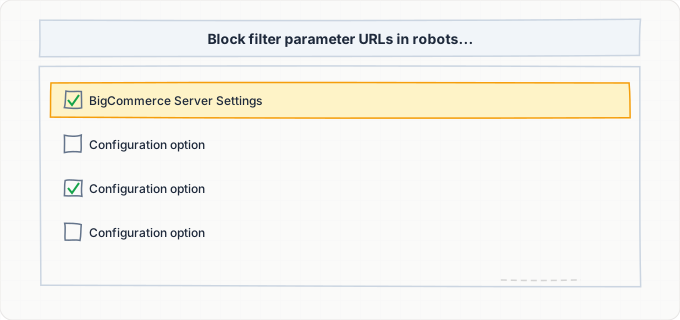
On BigCommerce Plus plans or above, navigate to Server Settings > Robots.txt and customize the file. Add your sitemap URL: Sitemap: https://yourstore.com/xmlsitemap.php. Add Disallow rules for faceted search parameters: Disallow: /*?brand=, Disallow: /*?price=, Disallow: /*?rating=, and similar patterns for each filterable attribute you have enabled. Be careful not to block parameters used by BigCommerce's core functionality. On Standard plans where robots.txt editing is not available, rely on BigCommerce's built-in canonical tags and monitor Search Console for any filter URLs that get indexed despite the canonicals.
Set Up 301 Redirects for Legacy and Changed URLs
Navigate to Server Settings > 301 Redirects and review existing redirects. If you migrated from another platform, ensure every old product URL has a 301 redirect to its BigCommerce equivalent. For products you have discontinued, create redirects from their URLs to the most relevant category page or replacement product. BigCommerce supports CSV import for bulk redirect creation: prepare a CSV with columns for old path and new URL, then import via the 301 Redirects page. After import, test a sample of redirects using your browser's developer tools Network tab to verify they return 301 (not 302) status codes and reach the correct destination.
Optimize Brand Pages and Thin Content
Navigate to Products > Brands and review each brand page. For brands with more than 5 products, add a substantive brand description (200+ words) that describes the brand, its product range, and why customers choose it. Add a custom Page Title and Meta Description under the SEO tab. For brands with only 1-2 products that create thin pages, consider either: (a) adding noindex to those brand pages via a theme customization, (b) removing the brand entirely and recategorizing the products, or (c) enriching the brand page with enough unique content to justify indexing. Monitor brand page performance in Google Search Console to determine which brand pages are earning impressions and clicks.
Verify Structured Data and Rich Results
Use Google's Rich Results Test to check 5-10 product pages across your store. Verify that Product schema is present with name, price, priceCurrency, availability, and review ratings (if you have reviews). Check that BreadcrumbList schema appears on category and product pages. If any fields are missing, edit your Stencil theme's product.html template to add the missing properties. For stores using BigCommerce's native review system, verify that aggregateRating appears in the structured data -- this is what triggers star ratings in search results. After fixing any issues, request re-validation in Search Console's Enhancements reports.
Submit Priority URLs via IndexBolt
With your on-page SEO optimized, use IndexBolt to accelerate indexing of your most important pages. Submit your homepage, top category pages, and best-selling product pages first. For seasonal inventory (holiday collections, back-to-school products), use IndexBolt's Instant mode to get pages indexed within hours rather than waiting for Google's natural crawl cycle. Newly added products that are time-sensitive -- limited editions, trending items, or products tied to upcoming events -- benefit most from direct submission. After submission, monitor the transition from "Discovered" to "Indexed" in Google Search Console's URL Inspection tool.
Common Issues & How to Fix Them
Faceted search URLs creating duplicate indexed pages
Cause: BigCommerce's product filtering appends parameters like ?brand=nike&color=red to category URLs. Each combination is a unique URL that Googlebot can discover through internal links on category pages. While BigCommerce adds canonical tags pointing to the base category, Google does not always follow canonical hints -- especially when the filtered pages have different content (different product subsets) than the canonical target.
Fix: Customize robots.txt (available on Plus plans and above) to block filter parameter patterns. On Standard plans, rely on canonical tags and monitor Search Console for indexed filter URLs. If filtered pages appear in the index, request removal via Search Console's Removals tool. For the most thorough solution, edit your Stencil theme to add noindex meta tags to any page where URL parameters indicate a filtered view.
Brand pages with thin content ranking poorly or not at all
Cause: BigCommerce auto-generates a page for every brand in your catalog at /brands/[brand-name]/. By default, these pages contain only a product grid with no descriptive text, making them thin content in Google's eyes. Brands with only 1-2 products create especially thin pages that may trigger Google's quality filters.
Fix: Add substantial brand descriptions (200+ words) via Products > Brands > [Brand]. Include information about the brand, its product categories, and what makes it distinctive. For brands with very few products, either enrich the page with more content or set the brand page to noindex using a theme-level customization. Focus your effort on brands with high search volume first.
Automatic 301 redirects failing for API-driven URL changes
Cause: BigCommerce creates automatic 301 redirects when you change a product's URL through the admin panel, but this behavior does not always apply to URL changes made through the BigCommerce API (particularly the v2 API). Bulk product imports that change URL fields may not generate redirects, leaving old URLs returning 404 errors.
Fix: When performing bulk URL changes via the API, generate redirect rules separately. Use the BigCommerce Redirects API (POST /v3/storefront/redirects) to create 301 redirects for each URL change. For product imports, export the current URLs first, perform the import, and then create a redirect map from old URLs to new URLs using a script that calls the Redirects API. Verify a sample of redirects after bulk operations.
Out-of-stock products disappearing from index when hidden
Cause: Setting out-of-stock products to "Hidden" visibility removes them from the sitemap, category pages, and internal search. Without inbound links or sitemap entries, Google gradually de-indexes these pages. When the product is restocked and made visible again, it must be re-indexed from scratch, losing accumulated ranking signals.
Fix: For products that will be restocked, keep them visible with an "Out of Stock" message rather than hiding them. Use BigCommerce's out-of-stock notification feature to collect email addresses from interested customers. Only hide or redirect products that are permanently discontinued. If you must temporarily hide a product, re-submit its URL through IndexBolt when you make it visible again to accelerate re-indexing.
Pro Tips
BigCommerce handles the SEO basics automatically, but new products and seasonal collections still wait in Google's crawl queue. Use IndexBolt to bypass the wait and push fresh product pages directly into Google's index -- especially valuable for time-sensitive inventory.
100 free credits. No credit card required. See results in under 24 hours.
Frequently Asked Questions
Does BigCommerce automatically generate a sitemap?+
Yes, BigCommerce automatically generates an XML sitemap at /xmlsitemap.php that includes all published products, categories, brands, and content pages. The sitemap updates automatically when you add, modify, or remove content. You do not need to install any apps or manually regenerate the sitemap. Submit /xmlsitemap.php as your sitemap URL in Google Search Console. The sitemap respects product visibility settings -- hidden products are excluded.
Can I customize robots.txt on BigCommerce?+
Robots.txt customization is available on BigCommerce Plus plans and above. Navigate to Server Settings > Robots.txt to edit the file directly. On the Standard plan, BigCommerce generates a default robots.txt that you cannot modify. If you need robots.txt control on a Standard plan, consider upgrading to Plus, or use meta robots tags in your Stencil theme templates as an alternative to block specific page types from indexing.
Why are my BigCommerce product pages not showing rich results (star ratings, prices)?+
BigCommerce Stencil themes include Product structured data by default, but rich results require specific fields to be populated. Star ratings in search results require your store to have product reviews enabled and actual reviews submitted. Prices must be in a supported currency with proper markup. Use Google's Rich Results Test on a product page to check for errors. Common issues include missing aggregate rating data (no reviews), incorrect price format, or outdated theme templates that do not include the latest Schema.org properties.
How do I handle SEO when migrating to BigCommerce from another platform?+
The most critical step is setting up 301 redirects from every old URL to its BigCommerce equivalent. BigCommerce supports CSV import for bulk redirects under Server Settings > 301 Redirects. Prepare a CSV mapping old URL paths to new BigCommerce URLs. Match products, categories, and content pages one-to-one where possible. For old URLs with no direct equivalent, redirect to the most relevant category page. After migration, submit your BigCommerce sitemap in Google Search Console and monitor the Index Coverage report for spikes in 404 errors or drops in indexed page count.
Should I keep out-of-stock products visible or hide them on BigCommerce?+
If the product will be restocked, keep it visible with an out-of-stock message. The product page retains its accumulated search equity, and you can enable BigCommerce's "Notify Me" feature to collect customer emails. Only hide or redirect products that are permanently discontinued. Hidden products lose indexing signals over time, and when restocked, must regain rankings from scratch. For permanently discontinued products, create a 301 redirect to a replacement product or the most relevant category page.