Squarespace Google Indexing: Complete Guide to Getting Your Pages Discovered
Squarespace is known for beautiful design templates, but beauty alone does not get pages indexed. This guide walks through every SEO setting, built-in feature, and common pitfall that determines whether Google finds and indexes your Squarespace content.
In this guide
Squarespace is a premium website builder popular with designers, photographers, and small businesses. It provides automatic SSL, clean URL structures, built-in XML sitemaps, and a per-page SEO panel out of the box.
However, you cannot edit robots.txt directly, install SEO plugins, or exclude specific pages from the sitemap. For most Squarespace sites, the built-in features are sufficient when configured correctly — but many users never configure them at all. This guide covers per-page SEO settings, sitemap behavior, redirect management, and platform-specific gotchas that can silently prevent indexing.
Squarespace's Built-In SEO Foundation
Squarespace provides a solid SEO foundation without requiring any third-party tools. Every Squarespace site includes a free SSL certificate with automatic HTTPS enforcement, an automatically generated XML sitemap at yourdomain.com/sitemap.xml, clean semantic HTML5 markup generated by Squarespace templates, automatic mobile-responsive design (Google's mobile-first indexing requirement), built-in 301 redirect management, and per-page SEO settings for title, description, and URL slug.
The XML sitemap is generated automatically and includes all published pages, blog posts, product pages (for Squarespace Commerce), portfolio items, and event pages. The sitemap updates within minutes of publishing or unpublishing content. You cannot manually add or remove specific URLs from the sitemap — it mirrors your published content exactly.
Squarespace templates use clean HTML5 with proper heading hierarchy (h1, h2, h3), semantic sectioning elements, and alt text support for images. The templates are built with SEO in mind, and the HTML structure is generally excellent. However, the template's visual design choices sometimes conflict with SEO best practices — for example, some templates use h2 tags for decorative subheadings while burying the main content under h3 or h4 tags.
All Squarespace sites are mobile-responsive by default. The templates use CSS media queries to adapt layouts for different screen sizes. Since Google uses mobile-first indexing, this means Google indexes the responsive mobile version of your pages, which includes all content. Unlike Wix, Squarespace does not allow you to hide content on mobile — the same content appears on all devices, just at different layouts. This actually benefits indexing because there is no risk of accidentally hiding content from Googlebot.
Configuring Per-Page SEO Settings
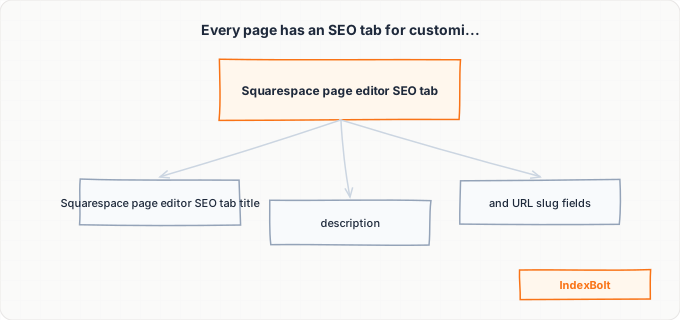
Every page, blog post, product, portfolio item, and event in Squarespace has its own SEO settings panel. Access it by editing the page, clicking the gear icon, and selecting the SEO tab. This is where you configure the three most important on-page SEO elements:
The SEO title (title tag) defaults to "Page Name | Site Name" if left blank. This auto-generated title is functional but rarely optimal. For each page, write a custom SEO title under 60 characters that includes your primary keyword and is compelling enough to earn clicks from search results. Squarespace truncates titles that exceed approximately 70 characters in the <title> tag.
The SEO description (meta description) defaults to the first portion of the page's text content if left blank. Auto-generated descriptions are almost never good because they pull from whatever text appears first, which might be a navigation label, a button text, or a header that lacks context. Write a custom description for every important page, keeping it under 155 characters and including a clear value proposition and call to action.
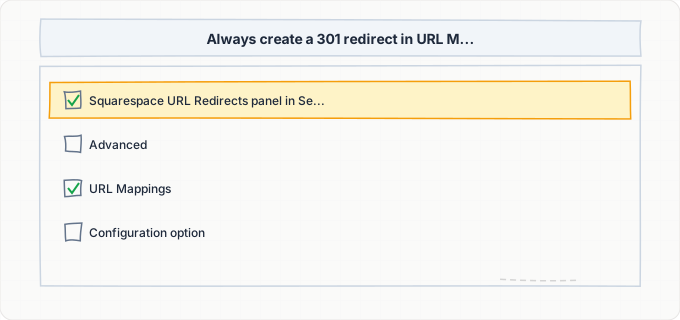
The URL slug is generated from the page name when you first create the page. Squarespace generates clean, lowercase slugs with hyphens. You can edit the slug at any time, but like Wix, Squarespace does not create automatic redirects when you change a slug. Always create a 301 redirect from the old URL to the new one if the page was already published.
For blog posts, there is an additional consideration: the URL includes the date by default, creating paths like /blog/2026/4/1/post-name. You can change this format in Blog Settings > Post URL Format to remove the date, creating cleaner URLs like /blog/post-name. However, changing the post URL format does not create redirects for existing posts. If you change the format after publishing posts, you need to manually redirect every existing post's old URL to its new one.
Squarespace's Sitemap and robots.txt Behavior
Squarespace's sitemap at /sitemap.xml is a single XML file (not a sitemap index) for most sites. It lists every published page with its last modification date and a change frequency hint. For sites with many pages, Squarespace may split the sitemap into multiple files and serve a sitemap index, but this happens automatically.
Pages that are published and not password-protected appear in the sitemap. Pages that are disabled (not in navigation but still published) also appear in the sitemap because they are technically published. Pages that are set to password-protected appear in the sitemap as well — this is a known Squarespace behavior that can cause indexing of password-protected pages (Google sees the password prompt and indexes it as the page content, which is not useful).
Squarespace's robots.txt is generated automatically and cannot be directly edited. The default robots.txt allows all crawlers and references the sitemap. It blocks internal resources that should not be crawled (Squarespace's own admin and asset paths). You cannot add custom Disallow rules, which means you cannot block specific directories or URL patterns from being crawled.
Because you cannot edit robots.txt, your only tool for controlling what gets indexed is the meta robots tag. To noindex a specific page, you can add a custom meta tag in the page's SEO settings panel under Advanced > Page Header Code Injection. Add <meta name="robots" content="noindex, follow"> to prevent Google from indexing that specific page while still following its links. This is the Squarespace workaround for the lack of robots.txt control.
Note that Code Injection is only available on Squarespace Business and Commerce plans. On personal plans, you cannot add noindex tags to individual pages, which means every published page is potentially indexable. This is important to consider when choosing your Squarespace plan if SEO control matters to your business.
301 Redirects and URL Management
Squarespace has a built-in 301 redirect manager at Settings > Advanced > URL Mappings. This tool uses a simple text-based format where each line defines a redirect: /old-path -> /new-path 301. You can also use wildcard redirects with the pattern /old-directory/* -> /new-directory/{1} 301, where {1} captures the wildcard portion.
The URL Mappings tool also supports external redirects: /old-path -> https://external-domain.com/page 301. This is useful if you have moved specific content to a different platform but want to maintain the old URLs on Squarespace.
Common situations where you need redirects on Squarespace include changing a page's URL slug, restructuring your site's navigation (moving pages to different sections), changing the blog post URL format, and migrating from another platform (mapping old URLs to new Squarespace URLs). Without redirects, changed URLs result in 404 errors, and any link equity from external links to those URLs is lost.
Squarespace also handles some redirects automatically. When you connect a custom domain, Squarespace creates a redirect from the built-in yoursitename.squarespace.com domain to your custom domain. The www to non-www (or vice versa) redirect is configured at Settings > Domains > yourdomain.com > WWW Prefix. Choose one version and stick with it — Google treats www.yourdomain.com and yourdomain.com as different URLs.
A known limitation of Squarespace's URL Mappings is that it does not support regex patterns (only simple wildcards with *). If you need complex redirect rules, such as redirecting all URLs matching a specific pattern with variable segments, you may need to create individual redirect rules for each URL. For migrations involving hundreds of URLs, prepare your redirect list in a text editor and paste it into the URL Mappings field.
Content That Can Block Indexing on Squarespace
Several types of content on Squarespace can prevent or complicate indexing:
Password-protected pages are a common issue. When you password-protect a page in Squarespace, Google can still crawl the URL (it appears in the sitemap), but it encounters a password form instead of actual content. Google indexes the password page as a very thin page with no useful content. If you have password-protected pages that should not be indexed, use Code Injection to add a noindex tag, or better yet, keep password-protected content on unpublished pages that are only accessible via direct link sharing.
Ajax-loaded content in Squarespace templates is another consideration. Some Squarespace templates (particularly the older Squarespace 7.0 templates) use Ajax page loading for smooth page transitions. With Ajax loading enabled, the browser does not fully reload between pages — it dynamically swaps content using JavaScript. Googlebot handles this reasonably well in 2026, but it means the initial crawl of an Ajax-loaded page may capture the page in a transitional state. Squarespace 7.1 templates do not use Ajax loading by default, which eliminates this issue.
Index pages and gallery pages in Squarespace are container pages that display child pages in a visual layout (grid, slider, or stack). The container page itself may have very little unique text content — just thumbnails and titles of child pages. Google may classify these as thin content and decline to index them. Add introductory text to your index and gallery pages to give Google unique content to index.
Squarespace Commerce product pages with variants can also be tricky. Each variant (size, color) does not get its own URL — variants are handled client-side on the same product page. This is actually good for indexing (no duplicates), but if your product description is minimal and all variants share it, the product page may have thin content. Write substantial product descriptions that cover the product family, not just a single variant.
Advanced Squarespace SEO: Structured Data and Social Meta
Squarespace automatically generates some structured data for your pages. Blog posts get Article schema, product pages get Product schema (including price and availability), and business information pages can include LocalBusiness schema if you fill in the Business Information settings at Settings > Business Information.
To view or extend the structured data on any Squarespace page, use the Code Injection feature (Business plan and above) to add custom JSON-LD structured data. For example, if you run a restaurant, you can add Restaurant schema with menu URLs, opening hours, and cuisine type. If you offer professional services, you can add Service schema for each service page.
Squarespace also supports Open Graph and Twitter Card meta tags through the social sharing settings on each page. While these do not directly affect Google indexing, they ensure your pages display correctly when shared on social media, which can drive traffic and external links that indirectly improve indexing.
For e-commerce sites on Squarespace Commerce, the automatic Product schema is particularly valuable. It enables rich results in Google search, showing price, availability, and review ratings directly in the search results. Make sure your products have complete information (price, availability status, product images with alt text) to take full advantage of this.
The site-wide SEO settings at Settings > SEO include a site title and site description that serve as fallbacks when individual pages do not have custom SEO titles or descriptions. Set these thoughtfully — they will appear on any page where you have not written custom meta tags. Also in this section, you will find the Google Search Console verification field, where you can paste your verification meta tag or HTML file verification code to connect your Squarespace site to Google Search Console without modifying DNS records.
Step-by-Step Guide
Connect Google Search Console to your Squarespace site
Go to Settings > SEO in your Squarespace admin and find the Google Search Console verification section. You can verify using a meta tag (paste the provided tag into the verification field) or DNS verification (add a TXT record to your domain's DNS settings). After verification, go to Google Search Console's Sitemaps section and submit yourdomain.com/sitemap.xml. Squarespace generates this sitemap automatically, so you do not need to create one. Confirm the sitemap is accepted and that Google begins processing it within 24-48 hours.
Write custom SEO titles and descriptions for all pages
Go through every published page in your Squarespace site. For each page, click the gear icon in the page editor, select the SEO tab, and write a custom SEO Title and SEO Description. Do not rely on Squarespace's auto-generated defaults. Your title should be under 60 characters and include the page's primary keyword. Your description should be under 155 characters and clearly communicate what the page offers. Start with your most important pages: the homepage, main service or product pages, and high-traffic blog posts. Then work through the rest of your published pages.
Optimize URL slugs for every page
For each page, check the URL slug in the page settings. Remove unnecessary words like "the," "and," or "of" to create concise, keyword-focused slugs. For example, change /our-professional-web-design-services to /web-design-services. If the page is already indexed with the current slug (check Google Search Console), create a 301 redirect from the old slug to the new one using Settings > Advanced > URL Mappings before changing the slug. For blog posts, consider whether the default date-based URL format (/blog/2026/4/1/post-name) serves you — if not, change the format in Blog Settings > Post URL Format to a cleaner structure.
Add text content to index pages, galleries, and thin pages
Review all your Squarespace index pages (page collections) and gallery pages. These container pages often have minimal text content — just thumbnails and titles. Add an introductory text block at the top of each index and gallery page with 100-200 words of unique content describing the collection. For product category pages, write descriptions of the product category. For portfolio galleries, write about your work and expertise. This gives Google unique content to index and helps these pages rank for relevant queries instead of being classified as thin content.
Configure 301 redirects for any changed or migrated URLs
Go to Settings > Advanced > URL Mappings. If you changed any URLs or migrated from another platform, add redirect rules in the format: /old-path -> /new-path 301. Each redirect goes on its own line. For wildcard redirects when you moved an entire section, use: /old-section/* -> /new-section/{1} 301. After adding redirects, test each one by visiting the old URL and confirming the browser lands on the new URL. Check Google Search Console's Pages report for 404 errors and add redirects for any pages that return errors but should redirect elsewhere.
Handle password-protected and noindex pages
If you have password-protected pages that should not appear in Google, use Code Injection (available on Business and Commerce plans) to add a noindex tag. Go to the page settings, click Advanced, and in the Page Header Code Injection field, add: <meta name="robots" content="noindex, follow">. For pages that are only used as landing pages from ads and should not be indexed, do the same. Review your sitemap at yourdomain.com/sitemap.xml and check for any URLs that should not be there. Since you cannot edit the Squarespace sitemap, noindex tags are your only way to prevent unwanted indexing.
Submit priority pages through IndexBolt for immediate indexing
After completing the SEO setup, check Google Search Console's Pages report for pages in the "Discovered - currently not indexed" or "Crawled - currently not indexed" categories. These are pages Google knows about but has not indexed yet. Copy these URLs and submit them through IndexBolt. For a new Squarespace site, submit all your main pages — homepage, about page, service pages, and key blog posts — through IndexBolt immediately after going live. This is especially valuable for Squarespace sites in competitive niches like photography, design, and restaurants where quick search visibility translates directly to client inquiries.
Common Issues & How to Fix Them
Password-protected pages appearing in Google with no useful content
Cause: Squarespace includes password-protected pages in the XML sitemap, and Google crawls and indexes them. But instead of finding meaningful content, Google encounters the password form, which gets indexed as a thin page with text like "This page is password protected." This wastes crawl budget and creates low-quality indexed pages.
Fix: On Business or Commerce plans, add <meta name="robots" content="noindex, follow"> via Code Injection in the page's Advanced settings. On personal plans where Code Injection is not available, consider unpublishing the page entirely and sharing it via a direct link instead. Check Google Search Console for any password-protected pages that have been indexed and request removal through the Removals tool while you implement the noindex tag.
Blog post URL format change breaking all existing blog URLs
Cause: Squarespace's blog post URL format (configurable in Blog Settings > Post URL Format) affects all blog posts when changed. If you switch from a date-based format (/blog/2026/4/1/post-title) to a plain format (/blog/post-title), every existing blog post URL changes immediately. Squarespace does not create redirects for this bulk change.
Fix: Before changing the URL format, export a list of all current blog post URLs (view them in the sitemap or compile them manually). After changing the format, create 301 redirects in Settings > Advanced > URL Mappings for every affected post. For large blogs, this can mean hundreds of individual redirect rules. Consider whether the URL format change is worth the effort and risk — if your existing posts are well-indexed with date-based URLs, it may be better to keep the format and only use the new format for future posts.
Ajax-loaded content in older Squarespace 7.0 templates
Cause: Squarespace 7.0 templates with Ajax loading enabled swap page content dynamically without full page reloads. While modern Googlebot can handle this, the Ajax loading means the initial HTML response for any page may not contain the target page's content — it loads after JavaScript execution. This can cause incomplete or delayed indexing, especially for pages with heavy image or media content.
Fix: If you are using a Squarespace 7.0 template, go to Design > Site Styles and look for the Ajax Loading option. Disabling it forces full page reloads, which ensures Google receives complete HTML for every page on the first request. Alternatively, migrate to a Squarespace 7.1 template, which does not use Ajax loading and provides better SEO fundamentals. If you cannot disable Ajax loading due to design requirements, test your pages with Google Search Console's URL Inspection tool to verify Google can render them fully.
Index pages and galleries classified as thin content
Cause: Squarespace index pages (page collections) and gallery pages display child pages in a visual grid, slider, or stack layout. The container page itself has little or no unique text — just thumbnails, titles, and possibly short excerpts. Google may classify these pages as thin content and choose not to index them, especially if the child pages already provide all the same information.
Fix: Add a content block (text, markdown, or summary) at the top of each index and gallery page with 100-300 words of unique, descriptive text. For a portfolio gallery, write about your approach, expertise, and the types of projects shown. For a services index page, provide an overview of your service areas. This unique text differentiates the container page from its children and gives Google a reason to index it.
No robots.txt control preventing granular crawl management
Cause: Squarespace does not allow editing the robots.txt file. The auto-generated robots.txt allows all crawlers to access all published pages. You cannot block specific directories, URL patterns, or auto-generated pages (like tag archives or category pages) from being crawled. This means Google crawls everything, including low-value pages you might prefer to exclude.
Fix: Since you cannot edit robots.txt, use page-level noindex tags (via Code Injection on Business/Commerce plans) to prevent unwanted pages from being indexed. While this does not save crawl budget (Google still crawls the page), it prevents low-value pages from cluttering your index. For pages that genuinely should not be crawled, consider restructuring your site to avoid creating those pages in the first place — for example, reducing the number of tag categories or combining similar collection pages.
Pro Tips
Squarespace builds beautiful websites, but beauty does not guarantee visibility. If your Squarespace pages are stuck in Google's 'Discovered but not indexed' queue, IndexBolt can push them through. Submit your page URLs and let IndexBolt handle the indexing pipeline, getting your polished Squarespace content in front of searchers within hours.
100 free credits. No credit card required. See results in under 24 hours.
Frequently Asked Questions
Does Squarespace automatically submit my site to Google?+
Squarespace generates an XML sitemap automatically and includes it in your robots.txt file, which Google eventually discovers. However, Squarespace does not proactively submit your sitemap to Google Search Console. You should manually connect Google Search Console and submit your sitemap to accelerate the initial discovery process. Without this manual step, Google relies on discovering your site through external links or its own web crawling, which can take weeks.
Can I add structured data (schema markup) to my Squarespace site?+
Squarespace automatically generates some structured data — Article schema for blog posts, Product schema for commerce products, and basic WebSite schema. To add custom structured data, use the Code Injection feature (available on Business and Commerce plans) to inject JSON-LD markup in the page header. You can add FAQ schema, LocalBusiness schema, Service schema, or any other schema type Google supports. Add the JSON-LD code in the page-level or site-wide header code injection field.
Why is my Squarespace blog not showing up in Google search?+
Common causes include: the blog has default SEO titles and descriptions that are not optimized for your target keywords, the blog posts have thin content (under 300 words), the blog URL format includes dates which creates long URLs that Google may deprioritize, or the blog was recently launched and Google has not had time to crawl it yet. Fix the first three issues through SEO settings optimization and content improvement, then use IndexBolt to accelerate indexing if Google is being slow.
How do I handle URL redirects when migrating to Squarespace?+
Go to Settings > Advanced > URL Mappings and add a redirect rule for every URL on your old site that maps to content on your new Squarespace site. The format is: /old-path -> /new-path 301. For bulk migrations, prepare all your redirects in a text file (one per line) and paste them into the URL Mappings field. Use wildcards (/old/* -> /new/{1} 301) for entire directory mappings. Test every redirect after adding it to ensure it works correctly.
Is Squarespace good for SEO compared to WordPress?+
Squarespace and WordPress both produce sites that Google can fully index. Squarespace has the advantage of simplicity — SSL, sitemaps, mobile responsiveness, and clean HTML work out of the box. WordPress has the advantage of flexibility — you can install SEO plugins, edit robots.txt, customize sitemaps, and add any meta tag you need. For small businesses and creative professionals, Squarespace's built-in SEO is typically sufficient. For sites that need granular SEO control, custom structured data, or advanced crawl management, WordPress offers more options.
Can I use IndexBolt with my Squarespace site?+
Yes. IndexBolt works with any website platform, including Squarespace. Simply copy your Squarespace page URLs and submit them through IndexBolt. This is particularly useful for Squarespace sites because the platform offers limited control over crawl prioritization. IndexBolt lets you push specific pages directly to Google's indexing pipeline, bypassing the wait for Google to discover and crawl them naturally.