Wix Google Indexing: The Complete Guide to Making Your Wix Site Visible in Search
Wix has come a long way from its early days as a JavaScript-only website builder. Modern Wix sites use server-side rendering, automatic sitemaps, and built-in SEO tools. But Wix-specific limitations around URL management, robots.txt control, and dynamic page rendering still create indexing challenges you need to understand.
In this guide
Wix serves over 200 million websites and now uses server-side rendering, automatic XML sitemaps, and a comprehensive SEO settings panel. The old reputation for poor SEO is outdated.
However, Wix is still a closed platform. You cannot edit server configuration directly, have limited robots.txt control, and dynamic pages powered by Wix Databases behave differently from static pages for sitemap inclusion. This guide covers Wix's built-in SEO features, per-page meta tag configuration, dynamic page indexing, URL slug management, and the platform-specific issues that can prevent Google from finding your content.
Wix's Built-In SEO Infrastructure
Wix handles many SEO fundamentals automatically. Every Wix site gets a free SSL certificate, and all pages are served over HTTPS. Wix generates an XML sitemap at yourdomain.com/sitemap.xml that includes all published pages, blog posts, and dynamic item pages. The sitemap updates automatically when you add, remove, or modify pages.
Wix also provides automatic canonical tags on every page. Each page gets a self-referencing canonical tag pointing to its clean URL. If your site is accessible at both www and non-www versions (which Wix does not typically create, since the platform enforces one version), the canonical tag ensures Google knows which is the primary URL.
Since 2020, Wix has used server-side rendering for the initial page load. When Googlebot requests a Wix page, it receives a fully rendered HTML document — not an empty shell that requires JavaScript execution. This was a critical change that resolved the historical issue of Wix pages appearing blank or incomplete in Google's index. However, certain interactive elements and content loaded via Wix's client-side data fetching may still require JavaScript rendering to become visible.
Wix automatically generates meta robots tags based on your page settings. Published pages get index, follow by default. Pages set to hidden (in the Pages panel) are not included in the sitemap and do not receive a noindex tag — they are simply not linked. However, if someone has a direct URL to a hidden page, it can still be crawled and indexed. To truly prevent indexing of a hidden page, you need to set it to noindex through the page's SEO settings.
The platform also handles Open Graph tags and Twitter Card meta tags for social sharing. While these do not directly affect Google indexing, they ensure consistent metadata across all discovery channels.
Using Wix SEO Wiz and the SEO Settings Panel
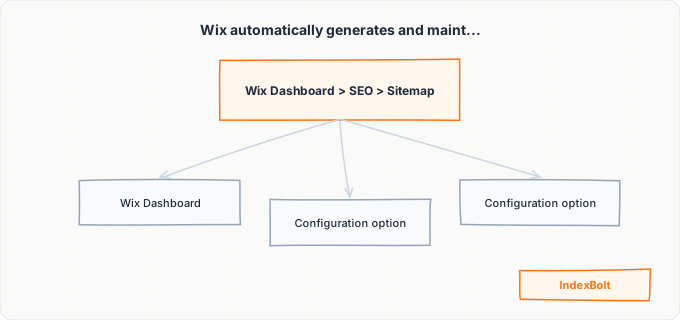
Wix SEO Wiz is an onboarding tool that walks you through basic SEO setup for your site. Accessible from Marketing & SEO > SEO in the Wix dashboard, it asks you to define your business type, target keywords, and location, then generates a personalized checklist of SEO tasks. While the Wiz is useful for beginners, it covers only the basics: connecting Google Search Console, setting homepage meta tags, and adding alt text to images. It does not address the technical indexing issues covered in this guide.
Far more important is the per-page SEO settings panel. In the Wix Editor, click on any page element in the Pages panel and select "SEO (Google)" or navigate to the page's SEO settings. Here you can customize the SEO title (title tag), meta description, URL slug, robots meta tag (index/noindex), canonical URL, structured data markup, Open Graph image and description, and additional meta tags in the page's <head>.
The URL slug field is critical. Wix generates default slugs from your page name, but these can be verbose or contain unnecessary words. For a page named "Our Professional Photography Services," Wix might create the slug /our-professional-photography-services. You can shorten this to /photography-services for a cleaner, more keyword-focused URL. Change slugs early — if you change a slug after the page is indexed, Wix does not automatically create a 301 redirect from the old URL. You must create one manually through the URL Redirect Manager.
Wix also has advanced SEO settings at Site Dashboard > SEO > SEO Settings, where you can set patterns for meta tags across all pages of a type. For example, you can set a pattern like "{page title} | {site name}" as the default title tag format for all blog posts. These patterns use dynamic variables that populate with each page's specific data.
Dynamic Pages and Wix Databases
Wix dynamic pages are pages whose content is pulled from a Wix Database (formerly called Content Collections). These are commonly used for staff directories, product catalogs, portfolio items, real estate listings, and any repeating content structure. Each database item generates its own page at a URL like /dynamic-page-prefix/item-slug.
The critical indexing consideration for dynamic pages is that they must be correctly configured to appear in your sitemap. In the Wix Editor, when you set up a dynamic page, you choose whether it is a "dynamic item page" (one page per database item) or a "dynamic list page" (a page listing all items). Item pages are typically the ones you want indexed individually.
To ensure dynamic item pages appear in your sitemap, the dynamic page must be published (not hidden) and the database collection must have a URL field that defines each item's slug. If your database items do not have a URL slug defined, Wix may generate numeric or hash-based URLs that are not SEO-friendly and may not be included in the sitemap.
Dynamic pages also present a rendering challenge. Content from the database is fetched at request time (or at render time for SSR). If the database query fails or times out, the page may render without its primary content. Google would then see a template page with placeholder text or empty containers, which is thin content. Monitor your dynamic pages in Google Search Console's URL Inspection tool to verify that Google sees the full content.
For Wix sites with hundreds or thousands of database items, the sitemap becomes large. Wix splits sitemaps into multiple files automatically when they exceed the 50,000 URL limit, but even within that limit, having thousands of dynamic pages means Google needs time to crawl them all. Use IndexBolt to submit your highest-priority dynamic page URLs and get them indexed faster than waiting for Google to work through a large sitemap.
Wix URL Slugs and Redirect Management
URL management on Wix requires more attention than on most platforms because of how Wix handles slug changes. When you change a page's URL slug in the editor, Wix updates all internal links to that page automatically. However, it does not create an automatic 301 redirect from the old URL to the new one. Any external links, bookmarks, or Google index entries pointing to the old URL will land on a 404 page.
Wix provides a URL Redirect Manager at Site Dashboard > SEO > URL Redirect Manager. Here you can create individual 301 redirects from old paths to new ones. You can also bulk-import redirects via CSV, which is useful if you are migrating to Wix from another platform and need to redirect hundreds of old URLs.
Some common URL slug issues on Wix:
Wix adds a numeric suffix to duplicate slugs. If you create two pages both named "About," the second gets the slug /about-1. This is not harmful but creates unprofessional-looking URLs. Rename one of the pages to get distinct slugs.
Wix blog post slugs are generated from the post title when you first create the post. If you change the title after publishing, the slug does not update automatically. You must manually update the slug in the post's SEO settings. If the original slug is already indexed by Google, create a redirect from the old slug to the new one.
Multilingual Wix sites create separate URL paths for each language (e.g., /lang/page-name). Each language version gets its own sitemap entry and canonical tag. Wix automatically adds hreflang tags to connect language versions, but verify this by viewing your page source. If hreflang tags are missing, Google may index the wrong language version for certain markets.
Wix does not support URL parameters natively, but third-party integrations and Wix's own features (like product filtering in Wix Stores) can add query parameters. These parameterized URLs can appear as duplicates in Google's crawl. While Wix's canonical tags generally resolve this, monitor Google Search Console for unexpected indexed URLs with query strings.
Wix-Specific Rendering and Performance Considerations
While Wix now uses server-side rendering, the platform's page weight can still affect crawl efficiency. Wix sites include the platform's runtime JavaScript, which handles interactive features, animations, and Wix's component system. This JavaScript is not necessary for Google to read the content (since SSR provides the HTML directly), but it adds to the total page weight and load time.
Wix sites hosted on Wix's infrastructure benefit from a global CDN and automatic image optimization. Wix converts images to WebP format and serves them through its media CDN at static.wixstatic.com. This is generally fast and does not cause indexing issues, but if you have a very image-heavy page (e.g., a gallery with 50+ high-res images), the initial page load can be slow, which may affect Google's crawl rate allocation for your site.
Wix's Corvid (now Velo) development platform allows you to add custom JavaScript code to your site. If you use Velo to dynamically load content — for example, fetching data from an external API and rendering it on the page — that content requires client-side JavaScript execution to become visible. Googlebot will render the JavaScript, but on a delayed schedule. Critical content should be rendered server-side whenever possible.
Mobile rendering is another consideration. Wix offers both a mobile-optimized version of your site and a separate mobile editor. Since Google uses mobile-first indexing, the mobile version of your Wix site is what gets indexed. Open your Wix mobile editor and verify that all important content is visible on mobile. Content that is hidden on mobile (using Wix's "Hide on Mobile" feature) may not be indexed, even if it is visible on desktop. Google's mobile-first indexing means if content is not on mobile, it may as well not exist.
Core Web Vitals performance on Wix has improved significantly. Wix implemented lazy loading for images and videos, reduced JavaScript bundle sizes, and optimized server response times. Check your site's Core Web Vitals in Google Search Console under Experience > Core Web Vitals to identify any pages that fail the assessment. Pages with poor Core Web Vitals may not receive a ranking boost, and extremely slow pages may have their crawl rate reduced.
Step-by-Step Guide
Complete the Wix SEO Wiz and connect Google Search Console
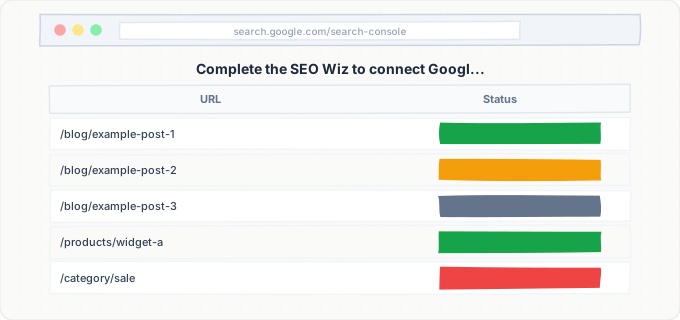
In your Wix dashboard, go to Marketing & SEO > SEO > SEO Wiz. Follow the setup wizard to define your business type and target keywords. When prompted, connect Google Search Console by clicking the integration link and following the verification steps. Wix can automatically verify your site with Google Search Console through a meta tag. After connecting, go to Google Search Console and verify that your Wix site's sitemap (yourdomain.com/sitemap.xml) has been automatically submitted. If not, submit it manually from the Sitemaps section.
Optimize SEO settings for every published page
In the Wix Editor, go through each page in the Pages panel. For each page, click the three-dot menu and select "SEO (Google)." Set a unique SEO title (under 60 characters, including your primary keyword), a compelling meta description (under 155 characters), and a clean URL slug (lowercase, hyphens between words, no unnecessary words). Ensure the robots meta is set to "index" for all pages you want in Google. For blog posts, access SEO settings from the Blog Manager and repeat the process for each post. Pay special attention to your homepage, service pages, and any high-value landing pages.
Configure dynamic pages for proper indexing
If your site uses Wix Databases with dynamic pages, go to the Dynamic Pages settings in the editor. For each dynamic item page, verify that the URL pattern includes the item's slug field (e.g., /services/{slug}). In your database collection, ensure every item has a unique, descriptive slug — not auto-generated numbers. Set the dynamic page's SEO pattern to use database fields for the title and description (e.g., "{item.title} | {site.name}" for the SEO title). Visit several dynamic page URLs and verify they render with full content. Test in Google Search Console's URL Inspection tool to confirm Google can render them.
Set up redirects for any changed URLs
Go to Site Dashboard > SEO > URL Redirect Manager. If you have changed any page slugs since your site was first published, create 301 redirects from the old paths to the new ones. If you migrated to Wix from another platform, upload a CSV of redirects from your old URL structure to your new Wix URLs. After setting up redirects, test each one by visiting the old URL in a browser and confirming it redirects to the correct new URL. Check Google Search Console's Pages report for any 404 errors and create redirects for any that need them.
Verify mobile rendering of all content
Since Google uses mobile-first indexing, open the Wix Mobile Editor and review every page. Check that all text content, images, and interactive elements are visible on mobile. Look for content hidden with the "Hide on Mobile" feature — if that content is important for SEO, unhide it or find a mobile-friendly way to display it. Use Google's Mobile-Friendly Test tool (search.google.com/test/mobile-friendly) to test your key pages. If any page fails the mobile-friendly test, adjust the mobile layout in the Wix Editor until it passes.
Review robots.txt and sitemap for completeness
Visit yourdomain.com/robots.txt and review the contents. Wix generates a standard robots.txt that allows all crawlers. Verify there are no unexpected Disallow rules. Then visit yourdomain.com/sitemap.xml and review the URLs listed. Confirm that all your important pages — homepage, service pages, blog posts, and dynamic pages — are included. If a page is missing from the sitemap, check whether it is set to hidden in the Pages panel or whether its robots meta tag is set to noindex. Fix any pages that should be indexed but are not in the sitemap.
Submit high-priority pages through IndexBolt
After verifying your technical setup, identify pages that are not yet indexed by checking Google Search Console's Pages report. Filter for "Discovered - currently not indexed" and "Crawled - currently not indexed" status. Export these URLs and submit them through IndexBolt. For new Wix sites that have never been indexed, submit your most important pages first — homepage, top service or product pages, and key blog posts. IndexBolt accelerates the indexing process from weeks to hours, which is especially valuable for Wix sites competing in local search where fast visibility means fast leads.
Common Issues & How to Fix Them
Content hidden on mobile is not indexed by Google
Cause: Google uses mobile-first indexing, meaning it indexes the mobile version of your page. Wix allows you to hide elements on mobile using the "Hide on Mobile" toggle in the editor. Any content hidden on mobile — text blocks, images, entire sections — is effectively invisible to Google, even if it is prominent on the desktop version.
Fix: Open the Wix Mobile Editor and review all hidden elements. For any content that is important for SEO (especially text content containing keywords), either unhide it or replace the hidden desktop element with a mobile-optimized version that displays the same content. After changes, test with Google Search Console's URL Inspection tool to verify Google sees the content.
URL slugs changed without redirects, causing 404 errors
Cause: Wix does not automatically create 301 redirects when you change a page's URL slug. If the page was already indexed by Google under the old URL, the old URL now returns a 404. External links and bookmarks pointing to the old URL also break. Over time, Google removes the old URL from its index, and the new URL must be discovered and indexed from scratch.
Fix: Go to Site Dashboard > SEO > URL Redirect Manager and create a 301 redirect from the old slug to the new one. To find which old URLs are returning 404, check Google Search Console's Pages report and filter for "Not found (404)" errors. Create redirects for each affected URL. Going forward, always set up a redirect immediately when changing any page's URL slug.
Dynamic pages returning empty or partial content to Googlebot
Cause: Dynamic pages that pull content from Wix Databases can sometimes fail to render their data if the database query times out or the data is not available during server-side rendering. This can happen if the database collection has permissions that restrict access, if the Velo code has errors, or if the database item referenced in the URL does not exist.
Fix: Test your dynamic pages in Google Search Console's URL Inspection tool by entering a dynamic page URL and clicking "Test Live URL." Review the rendered page to confirm all database content is visible. If content is missing, check your database collection's permissions (should be "Anyone" for read access on public content), verify the Velo code does not have errors, and ensure every database item has all required fields populated.
Wix site's JavaScript-heavy features delaying full indexing
Cause: While Wix uses SSR for the initial page load, interactive features like Wix Stores product filters, Wix Bookings calendars, and Velo-powered dynamic content still require client-side JavaScript. Google processes JavaScript rendering on a deferred schedule, so content that depends on client-side JS may take longer to be fully indexed. In some cases, Googlebot may index the SSR version without the JS-rendered additions.
Fix: Ensure all critical text content (headings, product descriptions, service details) is part of the static page content, not loaded dynamically via JavaScript. For Wix Stores, product titles and descriptions are SSR'd by default, but custom product fields may not be. Test with URL Inspection to see what Google renders. If critical content is missing from the SSR version, consider restructuring your page to include that content statically.
Multilingual site with missing or incorrect hreflang tags
Cause: Wix's multilingual feature generates separate URL paths for each language and should automatically add hreflang tags. However, if the multilingual setup was partially configured, or if some pages were not translated, hreflang tags may be missing or inconsistent. This causes Google to potentially index the wrong language version for specific regions.
Fix: View the page source of your homepage and search for hreflang. Verify that each language version has a corresponding hreflang tag and that the tags point to the correct URLs. In the Wix multilingual dashboard, ensure all pages have been translated or at least have the appropriate language routing configured. If hreflang tags are missing, contact Wix support, as this is typically a platform-level feature that should work automatically when multilingual is properly enabled.
Pro Tips
Wix sites often compete in local and small business search markets where every day without indexing is a day without leads. IndexBolt gets your Wix pages into Google within hours, not weeks. Whether you just launched a new Wix site, added dynamic pages from a database, or fixed indexing issues, submit your URLs through IndexBolt to start appearing in search results immediately.
100 free credits. No credit card required. See results in under 24 hours.
Frequently Asked Questions
Can Google properly index Wix sites in 2026?+
Yes. Wix sites are fully indexable by Google in 2026. Wix uses server-side rendering, generates automatic XML sitemaps, includes canonical tags, and supports all the technical SEO features Google requires. The historical concerns about Wix sites being JavaScript-only and invisible to Google were resolved when Wix implemented SSR. However, you still need to configure your page-level SEO settings properly and avoid the platform-specific pitfalls covered in this guide.
How do I control robots.txt on Wix?+
Wix generates robots.txt automatically and provides limited direct control. You cannot freely edit the robots.txt file as you can on WordPress or a self-hosted platform. However, Wix allows you to add custom rules through Site Dashboard > SEO > SEO Tools > robots.txt Editor. You can add Disallow rules for specific paths, though the core platform rules cannot be removed. For most Wix sites, the default robots.txt is correctly configured and does not need modification.
Why are some of my Wix blog posts not appearing in Google?+
Common causes include: the blog post is set to draft rather than published, the post's SEO settings have the robots meta tag set to noindex, the post's URL slug was changed after indexing without a redirect, or the post has very thin content that Google chose not to index. Check each post's SEO settings in the Blog Manager, verify the post appears in your sitemap, and test the URL in Google Search Console's URL Inspection tool to see if Google can access and render it.
Does using a free Wix plan affect my site's indexing?+
Free Wix sites use a subdomain (username.wixsite.com/sitename) rather than a custom domain. Google can index sites on subdomains, but the URL structure is less professional and may be treated differently. More importantly, free Wix sites display Wix branding ads, which do not directly block indexing but add to page weight. Connecting a custom domain (requires a Wix premium plan) is strongly recommended for any site where search visibility matters.
How do I submit my Wix site to Google for the first time?+
The fastest way is to connect Google Search Console through Wix's SEO tools. Go to Marketing & SEO > SEO > SEO Wiz, and follow the prompts to connect Google Search Console. Wix will automatically verify your site. Then go to Google Search Console's Sitemaps section and submit yourdomain.com/sitemap.xml. For even faster initial indexing, submit your most important page URLs through IndexBolt immediately after connecting your domain and making your site public.