Blogger Google Indexing: The Complete Guide to Getting Your Blogspot Blog in Search Results
Maximize your free Blogger blog's SEO potential despite the platform's built-in limitations
In this guide
Blogger (Blogspot) is Google's own free blogging platform, yet its limited SEO controls, label page duplication, and lack of modern optimization features create unique indexing challenges. There is no plugin ecosystem, no structured data management, and no page speed tools -- just a minimal settings panel.
This guide covers every SEO lever available on Blogger: search descriptions, robots.txt customization, sitemap submission, custom domain setup, label page handling, and the legacy mobile subdomain issue. Whether you run a personal blog or a niche content site, you will extract maximum indexing value from the platform.
Blogger's Search Preferences: Your SEO Control Center
Blogger's SEO settings are consolidated under Settings > Search preferences (in the modern Blogger dashboard, this is Settings, then scroll down to the "Crawlers and indexing" section). This is a compact set of options, but each one has a significant impact on how Google indexes your blog.
The first and most important setting is "Enable search description." This toggle is disabled by default on new Blogger blogs, which means your posts are indexed without a meta description tag in the HTML. When Google has no meta description to work with, it extracts a snippet from your post content -- which might be your sidebar widget text, a navigation link, or an awkwardly truncated sentence. Enable this setting immediately. Once enabled, every post editor will show a "Search Description" field on the right sidebar where you can write a custom 150-character meta description for each post.
The "Meta tags" section lets you set a description for your blog's homepage. This is separate from individual post descriptions. Write a description that summarizes your blog's topic and audience: "Tech reviews and tutorials for developers building with modern JavaScript frameworks" is better than "My blog about stuff."
The "Custom robots.txt" section lets you override Blogger's default robots.txt. By default, Blogger's robots.txt allows all crawling and points to two sitemaps: /sitemap.xml and /atom.xml. The default is fine for most blogs, but if you want to block specific paths (like label pages or search results pages), you can customize it here. Be extremely careful: a misconfigured robots.txt can de-index your entire blog.
The "Custom robots header tags" section allows you to set page-level robots directives for different page types: Homepage, Archive and Search Pages, and Post and Page Pages. The defaults are all set to "noarchive" (preventing cached versions in search results). You can add noindex to archive and search pages to prevent thin content pages from being indexed while keeping your actual posts indexed.
These settings are the entirety of Blogger's built-in SEO tools. There are no plugins, no extensions, and no marketplace for add-ons. Every other SEO improvement requires editing your blog's HTML template directly.
Custom Domain vs. Blogspot.com: SEO Implications
New Blogger blogs are hosted at yourblogname.blogspot.com. Blogger supports connecting a custom domain (yourdomain.com) through Settings > Publishing > Custom domain. The SEO implications of this choice are significant.
The blogspot.com subdomain is owned by Google, and your blog shares this domain with millions of other blogs. Any domain authority that blogspot.com accumulates is spread across all Blogspot blogs, and your individual blog's signals are diluted. A custom domain (yourdomain.com) accumulates authority exclusively for your site. Over time, a custom domain almost always outperforms a blogspot.com subdomain for competitive keywords.
However, there is a practical nuance. For brand-new blogs with no backlinks and no content history, blogspot.com provides a slight initial advantage: Google trusts the blogspot.com domain, so new posts on a blogspot.com blog may be crawled and indexed slightly faster than posts on a fresh custom domain with zero authority. This advantage disappears within a few months as you build content and backlinks.
If you decide to switch from blogspot.com to a custom domain, Blogger handles the redirect automatically -- all blogspot.com URLs redirect to the custom domain equivalent. Google recognizes this redirect and transfers indexing signals from the blogspot.com URLs to the custom domain over time. The transition typically takes 2-4 weeks for Google to fully process, during which you may see temporary ranking fluctuations.
One complication: Blogger's custom domain setup requires specific DNS records. You need a CNAME record pointing your domain (or www subdomain) to ghs.google.com and four A records pointing to Google's IP addresses (216.239.32.21, 216.239.34.21, 216.239.36.21, 216.239.38.21). If your DNS provider does not support CNAME records on the root domain, you must use a www subdomain (www.yourdomain.com) and set up a redirect from the root domain to www. Test the setup thoroughly -- DNS misconfigurations can make your blog inaccessible, and downtime during a domain transition harms both user experience and crawl continuity.
Understanding Blogger's Sitemap Structure
Blogger automatically generates a sitemap at /sitemap.xml. This is a sitemap index that points to individual sitemap files containing your posts and pages. For blogs with more than 150 posts, the sitemap is split into multiple files: /sitemap.xml?page=1, /sitemap.xml?page=2, and so on, with each file containing up to 150 URLs.
Blogger also generates an Atom feed at /atom.xml?redirect=false&start-index=1&max-results=500 that Google can use for content discovery. The default robots.txt references both the sitemap and the Atom feed.
The sitemap includes all published posts and static pages, with their last modified dates. However, Blogger's sitemap does not include label (tag/category) pages, archive pages, or the homepage as separate entries. This is actually a good thing -- label and archive pages are typically thin content, and including them in the sitemap would dilute your crawl budget.
To verify your sitemap is working, paste /sitemap.xml into your browser. You should see an XML document listing your posts with their URLs and last modification dates. Submit this URL in Google Search Console under Sitemaps. Google typically processes a Blogger sitemap within 24-48 hours and begins indexing any undiscovered posts.
A quirk of Blogger's sitemap: when you update an old post, the lastmod date in the sitemap changes, signaling to Google that the content has been refreshed. This is useful for content updates -- if you substantially revise an old post, the sitemap change prompts Google to re-crawl it. However, trivial edits (fixing a typo) also update the lastmod date, which can waste crawl budget if you are making frequent minor edits across many posts.
Blogger does not support separate sitemaps for images, videos, or news content. The standard post sitemap is your only option. If you publish image-heavy or video-heavy content, ensure your posts have descriptive alt text on images and proper embedding for videos so Google can discover this media content through the HTML of your posts rather than through a dedicated media sitemap.
Dealing with Label Pages and Thin Content
Blogger's label system (equivalent to tags or categories on other platforms) creates dedicated pages at /search/label/[label-name] that list all posts with that label. These label pages are one of Blogger's biggest SEO problems.
Each label page displays post snippets (titles, dates, and truncated content) for all posts tagged with that label. If you have 10 labels and 50 posts, and each post has an average of 3 labels, you have 10 label pages -- each containing a partial list of post snippets that are already available on your blog's homepage and individual post pages. This is textbook thin, duplicate content.
The problem compounds with pagination. If a label has 30 posts and your blog displays 7 posts per page, the label generates 5 paginated pages (/search/label/javascript, /search/label/javascript?updated-max=..., etc.). These paginated label pages have even thinner content -- just 7 post snippets each.
To handle label pages, use the "Custom robots header tags" setting in Settings > Search preferences. For "Archive and Search Pages," enable "noindex" and "follow." This tells Google not to index label pages, archive pages, or search results pages, while still following links on those pages to discover your individual posts. The "follow" directive is important -- it ensures Google continues to discover posts linked from label pages even though the label pages themselves are not indexed.
If you rely on label pages for site navigation (many Blogger themes display label links in the sidebar), keep them accessible to crawlers (do not block them in robots.txt) but noindex them via the robots header tags. This way, Google can follow links from label pages to your posts but will not index the label pages themselves.
Another approach is to limit the number of labels you use. Each unique label creates a new label page, so using 50 granular labels creates 50 thin content pages. Consolidate labels into 5-10 broad categories. Remove unused or redundant labels from posts to reduce the total number of label pages.
The Mobile Subdomain Problem: m.blogspot.com
Blogger historically served mobile visitors a separate version of the blog at m.blogspot.com (or m.yourdomain.com for custom domains). This mobile site used a stripped-down template with simplified formatting. The desktop version at www.blogspot.com and the mobile version at m.blogspot.com had different URLs for the same content, creating a massive duplicate content problem.
As of recent Blogger updates, Google has largely deprecated the m. subdomain behavior, and modern Blogger themes use responsive design to serve the same content on all devices. However, some older Blogger themes still trigger the m. redirect, and some blogs that have been around for years still have m. URLs in Google's index.
To check if your blog is affected, visit your blog's URL on a mobile device or using a mobile user-agent string. If you are redirected to an m. subdomain URL, your theme is using the legacy mobile template. Switch to a responsive Blogger theme (any theme from the built-in theme gallery dated 2020 or later should be responsive) to eliminate the mobile redirect.
If m. URLs are already in Google's index, switching to a responsive theme should eventually resolve the issue -- Google will recrawl the m. URLs, receive a redirect to the main domain (or the m. URL will simply serve the responsive version), and consolidate the index entries. To speed this up, you can use Google Search Console's URL Inspection tool to request re-indexing of any m. URLs you find.
For custom domain blogs, check whether your DNS has a separate m. subdomain record. If it does and you have switched to a responsive theme, you can remove the m. DNS record after verifying that no active redirects depend on it.
This issue highlights a broader Blogger limitation: the platform's age means it carries legacy behaviors that modern platforms do not have. When you encounter unexpected duplicate content or redirect issues on Blogger, the cause is often a vestige of the platform's pre-mobile-web architecture.
Customizing Blogger Templates for Better SEO
Blogger's HTML template editor (Theme > Customize > Edit HTML) gives you direct access to the blog's underlying code. While this is not as flexible as a full CMS, you can make several impactful SEO improvements by editing the template.
Adding structured data is the most valuable template edit. Blogger themes do not include JSON-LD structured data by default. You can add an Article schema block inside the post content section of your template, using Blogger's template data tags to populate the fields dynamically: <data:post.title/> for the headline, <data:post.url/> for the URL, <data:post.dateIso8601/> for the date, and so on. This enables rich results in Google search, showing your post's publish date, author, and potentially a featured image.
Adding canonical tags is another important edit. While Blogger does add canonical tags by default, you should verify they are present and correct by viewing the page source. If your blog is on a custom domain but the canonical tags still reference blogspot.com URLs, there is a configuration issue that needs resolution.
Custom heading hierarchy is often broken in Blogger themes. The blog title is typically an <h1> tag, and post titles are <h2> tags. On individual post pages, the post title should be the <h1>. You can fix this by editing the template to conditionally render: on the homepage, the blog title is <h1> and post titles are <h2>; on post pages, the post title becomes <h1> and the blog title becomes a <p> or is hidden. This correct heading hierarchy helps Google understand the content structure of each page.
Open Graph and Twitter Card meta tags are not included in Blogger's default templates. Adding these tags to your template enables proper social sharing previews and may indirectly improve SEO by increasing social engagement and link sharing. Use Blogger's template data tags to populate og:title, og:description, og:image, and og:url dynamically based on the current post's content.
Step-by-Step Guide
Enable Search Descriptions and Set Blog Metadata
Log in to your Blogger dashboard and navigate to Settings. Scroll down to the "Crawlers and indexing" section (or "Search preferences" in the legacy interface). Enable "Enable search description" by toggling it on. In the "Description" field that appears, write a 150-character summary of your blog's topic and audience. This description will appear as the meta description for your blog's homepage. After saving, go to any post in the editor and verify that a "Search Description" field now appears in the right sidebar (under "Post settings"). From now on, write a custom search description for every post before publishing.
Configure Robots Header Tags for Label and Archive Pages
In the same Settings > Crawlers and indexing section, find "Custom robots header tags" and enable it. For "Homepage," select "all" and "noodp" (no Open Directory Project description). For "Archive and Search Pages," select "noindex" and "follow" -- this prevents thin label pages, archive pages, and search results from being indexed while allowing Google to follow links on those pages. For "Post and Page Pages," select "all" and "noodp" to ensure your actual posts and pages are fully indexed. Save the settings.
Submit Your Sitemap to Google Search Console
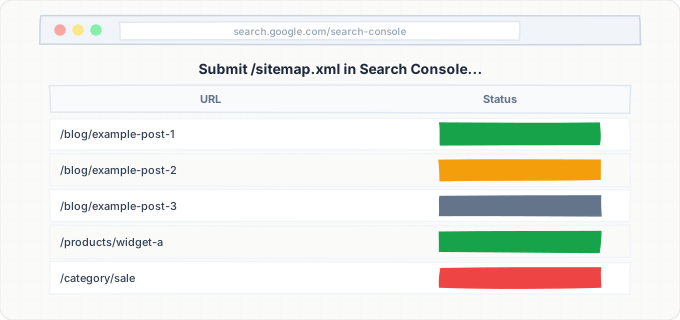
Open Google Search Console (you must have verified ownership of your blog, which is automatic for blogspot.com blogs if you use the same Google account). Navigate to Sitemaps in the left sidebar. Enter your sitemap URL: /sitemap.xml for the main sitemap. Click Submit. Google will process the sitemap within 24-48 hours. After processing, return to the Sitemaps section to check for any errors. If Google reports issues, verify that your sitemap XML is valid by opening it directly in your browser. You can also submit /atom.xml as a secondary feed for content discovery, though the sitemap should be sufficient for most blogs.
Set Up a Custom Domain (Recommended)
If you plan to build a serious blog, purchase a custom domain from a registrar. In your Blogger Settings, under "Publishing," click "Custom domain" and enter your domain name (e.g., yourdomain.com). Blogger will display the required DNS records: a CNAME record and four A records. Log in to your domain registrar's DNS management and add these records. DNS propagation takes 24-48 hours. After propagation, return to Blogger and re-enter your custom domain -- Blogger will verify the DNS records and activate the custom domain. Enable HTTPS (Settings > HTTPS > HTTPS availability: Yes and HTTPS redirect: Yes) to ensure all traffic uses HTTPS. If you were previously indexed on blogspot.com, Google will process the redirect automatically.
Write Search Descriptions for All Existing Posts
Go through every published post on your blog and add a custom Search Description. Open each post in the editor, find the "Search Description" field in the sidebar, and write a 150-character description that includes the post's primary keyword and a reason to click. This is tedious for blogs with many posts, but it makes a measurable difference in click-through rates from search results. Prioritize your highest-traffic posts first (check Google Search Console's Performance report to identify them). After updating descriptions, Google will pick up the changes on its next crawl -- typically within a few days for blogspot.com blogs.
Add Structured Data to Your Blogger Template
Navigate to Theme > Customize > Edit HTML. Locate the section of your template that renders individual post content (look for <data:post.body/> or similar). Above this section, add a JSON-LD script block that outputs Article structured data using Blogger's template tags. Include headline (from <data:post.title/>), datePublished (from <data:post.dateIso8601/>), author, and mainEntityOfPage (from <data:post.url/>). Save the template and validate the structured data using Google's Rich Results Test on one of your published posts. Fix any errors the validator reports.
Accelerate Indexing with IndexBolt
Despite Blogger being a Google property, new posts can still take days to appear in search results -- especially on newer blogs or blogs with low traffic. After publishing a new post, copy its URL and submit it through IndexBolt. This is particularly valuable for timely content: trending topic commentary, event coverage, or seasonal content where the indexing window matters. IndexBolt's Normal mode is sufficient for routine blog posts, while Instant mode is worth the credits for content tied to breaking topics where being first in the index translates to significant traffic. Monitor your post's appearance in search results through Google Search Console's Performance report.
Common Issues & How to Fix Them
Posts indexed without meta descriptions showing random snippets
Cause: The "Enable search description" toggle in Blogger's settings was not enabled, so Blogger does not output a <meta name="description"> tag in the HTML. Without this tag, Google generates its own snippet by extracting text from the page -- which may include sidebar widget text, navigation links, or truncated sentences that look unprofessional in search results.
Fix: Enable "Enable search description" in Settings > Crawlers and indexing. Then add a custom Search Description to every published post through the post editor. For existing posts that are already indexed without descriptions, update them with descriptions and wait for Google to re-crawl (or request re-indexing via Search Console's URL Inspection tool).
Label pages creating thin duplicate content in Google's index
Cause: Every label (tag) you assign to posts creates a page at /search/label/[label-name] that displays post snippets. These pages contain the same content (titles and excerpts) that appears on your homepage and in your posts, adding no unique value. With many labels, dozens of thin pages accumulate in Google's index.
Fix: Enable noindex for "Archive and Search Pages" in Settings > Crawlers and indexing > Custom robots header tags. This applies a noindex directive to all label pages, archive pages, and search result pages. Keep the "follow" directive enabled so Google continues to discover posts through links on these pages. Additionally, consolidate your labels to 5-10 broad categories instead of dozens of granular tags.
Mobile m. subdomain URLs creating duplicate pages in the index
Cause: Legacy Blogger themes redirect mobile visitors to an m.blogspot.com (or m.yourdomain.com) subdomain that serves a stripped-down mobile template. Both the desktop URL and the mobile URL get indexed by Google, creating duplicate content entries for every post.
Fix: Switch to a responsive Blogger theme that serves the same content on all devices without redirecting to a mobile subdomain. Go to Theme and select any modern theme from the gallery (themes labeled "Contempo," "Soho," "Emporio," or "Notable" are all responsive). After switching, the m. redirect stops, and Google will consolidate the duplicate entries over time. Speed up the consolidation by requesting re-indexing of affected URLs via Search Console.
Custom domain blog losing indexing after DNS changes
Cause: DNS misconfiguration during custom domain setup -- incorrect CNAME target, missing A records, or DNS propagation delays -- causes the blog to become temporarily inaccessible. If Google's crawler encounters 5xx errors or DNS resolution failures over multiple days, it may temporarily reduce crawl frequency or drop pages from the index.
Fix: Verify DNS records are correct using a DNS lookup tool (dig or nslookup). The CNAME record should point to ghs.google.com, and four A records should point to Google's IPs. After confirming DNS is correct, wait 48 hours for full propagation. Once the blog is accessible, submit the sitemap in Google Search Console and request indexing for your most important pages. Indexing typically recovers within one to two weeks after DNS is stable.
Google crawling Blogger slowly despite it being a Google property
Cause: Contrary to popular belief, Blogger blogs do not receive preferential crawl treatment from Google. New blogs with few backlinks and low traffic have the same low crawl budget as any new site. Additionally, Blogger's shared infrastructure means that aggressive crawling of one blog is throttled to protect the overall system.
Fix: Build inbound links from relevant sites to increase your blog's crawl priority. Publish consistently to establish a crawl pattern. Submit your sitemap to Search Console and ping it when you publish new content (GET https://www.google.com/ping?sitemap=YOUR_SITEMAP_URL). Use IndexBolt to submit high-priority posts directly to Google's indexing pipeline, bypassing the crawl queue entirely.
Pro Tips
Even on Google's own Blogger platform, new posts can wait days for crawl attention. Use IndexBolt to push your freshest content into Google's index immediately -- especially crucial for timely posts on trending topics where being first matters.
100 free credits. No credit card required. See results in under 24 hours.
Frequently Asked Questions
Is Blogger good for SEO compared to WordPress?+
Blogger handles basic SEO adequately -- it auto-generates sitemaps, supports meta descriptions, and allows robots.txt customization. However, it lacks the advanced SEO capabilities of WordPress: there are no SEO plugins (like Yoast or Rank Math), no structured data management, limited URL customization, and no page speed optimization tools. For a personal blog or hobby site, Blogger's SEO is sufficient. For a business or professional content site competing for rankings, WordPress or another full-featured CMS will give you significantly more control.
How long does it take for Blogger posts to get indexed?+
New posts on established Blogger blogs with regular publishing schedules are typically indexed within 24-72 hours. Brand-new blogs may take 1-2 weeks for initial indexing as Google discovers and evaluates the site. Submitting your sitemap to Google Search Console speeds up discovery. For fastest indexing, use IndexBolt to submit post URLs directly to Google's indexing pipeline. Despite Blogger being a Google property, there is no automatic instant indexing for Blogspot content.
Should I use a custom domain with Blogger for better SEO?+
Yes, a custom domain is recommended for any blog you plan to grow seriously. A custom domain accumulates authority exclusively for your site, while blogspot.com authority is shared across millions of blogs. The custom domain setup is straightforward: purchase a domain, add the required DNS records (CNAME to ghs.google.com and four A records), and configure it in Blogger settings. Blogger handles the redirect from blogspot.com to your custom domain automatically, preserving any existing search equity.
How do I add structured data (Schema.org) to my Blogger blog?+
Blogger does not have a built-in structured data manager, so you must edit your theme's HTML template directly. Go to Theme > Customize > Edit HTML and add a JSON-LD script block within the post content section. Use Blogger's template data tags (like <data:post.title/> and <data:post.dateIso8601/>) to dynamically populate the structured data fields. At minimum, add Article schema with headline, datePublished, author, and mainEntityOfPage. Validate your implementation using Google's Rich Results Test after publishing a post.
Why are my Blogger archive pages appearing in Google search results?+
Blogger generates archive pages by date (/2025/01/, /2025/01/01/) and by label (/search/label/topic). These pages are indexed by default because Blogger does not add noindex to them. To fix this, enable "Custom robots header tags" in Settings > Crawlers and indexing and set "Archive and Search Pages" to noindex, follow. This tells Google not to index these thin content pages while still following links to discover your actual posts.