Blog Posts Not Indexed on Google: Complete Troubleshooting Guide
Your blog posts are invisible to Google. Learn exactly why search engines skip blog content and how to fix the most common indexing blockers specific to blogs.
In this guide
Your blog posts are stuck in Google Search Console's "Discovered - currently not indexed" or "Crawled - currently not indexed" queues. Blog content faces unique indexing challenges because posts live inside a web of archives, categories, tags, and date-based URLs that compete for crawl attention and create duplicate content signals.
This guide covers the specific blockers that prevent blog posts from being indexed: thin content detection, orphan post identification, archive page cannibalization, and SEO plugin misconfiguration. Follow the diagnostic steps to pinpoint and fix your exact indexing problems.
Why Blog Posts Face Unique Indexing Challenges
Blog architectures generate an extraordinary number of URLs from a relatively small amount of original content. A single blog post might appear on:
- The main blog feed
- Inside a category archive
- On multiple tag archives
- On a date-based archive
- On the author page
- In search result pages generated by your site's internal search
Each of those pages contains a snippet or the full text of your post, and each one has a unique URL that Google must crawl and evaluate independently.
This URL proliferation creates two serious problems:
- 1It wastes crawl budget. Google allocates a finite number of pages it will crawl on your site in a given timeframe. If your blog generates 15 archive URLs for every single post you publish, Google may spend most of its crawl budget on those derivative pages rather than on your actual content. A blog with 200 posts and 30 tags, 15 categories, and date-based archives can easily generate 3,000+ URLs that all contain duplicated content.
- 1It confuses Google's canonicalization. When Google finds the same paragraph of text on seven different URLs, it has to decide which URL is the "original." If your canonical tags are not set correctly, or if the archive pages carry more internal link weight than the individual posts, Google might choose to index the archive page and skip your actual blog post entirely. This is called archive cannibalization, and it is one of the most common reasons blog posts fail to get indexed.
Another blog-specific factor is content freshness. Google's crawl scheduler prioritizes sites that publish new content regularly and deprioritizes sites that publish sporadically. If you published 10 posts in January and then nothing until June, Google may have reduced your crawl rate during that gap. When you finally publish new content, it takes longer for Google to discover and index it because the crawler is visiting your site less frequently.
Finally, blog posts are more likely than other page types to suffer from thin content problems. A 150-word blog post that amounts to a quick thought or status update may not meet Google's quality threshold for indexing. Google has publicly stated that it tries to avoid indexing pages that provide little unique value, and short blog posts that do not comprehensively address a topic often fall below that bar.
Diagnosing Archive Page Cannibalization
Archive cannibalization is one of the sneakiest blog indexing problems because it does not trigger any errors in Google Search Console. Your site appears to be functioning correctly, and Google is crawling your URLs. The problem is that Google is choosing to index the wrong URLs.
To diagnose archive cannibalization:
- 1Search for a unique sentence from one of your unindexed blog posts. Copy a sentence that is unlikely to appear anywhere else on the internet, wrap it in quotes, and search Google for it. If the result that appears is a category or tag archive page rather than the individual blog post URL, you have confirmed cannibalization.
- 1Check the URL Inspection tool in Google Search Console. Enter the URL of an unindexed blog post and look at the "Google-selected canonical" field. If Google has selected a different URL as the canonical, that is the URL Google considers the "original" version of that content.
- 1Audit at scale by exporting the Pages report from Google Search Console and filtering for your blog post URL pattern. Compare the list of indexed blog post URLs against your full list of published posts. Any posts missing from the indexed list are candidates for further investigation.
The fix for archive cannibalization involves three actions:
- 1Add a `noindex` meta tag to all tag, date, and author archive pages. These pages serve a navigational purpose for users already on your site, but they rarely provide enough unique value to warrant indexing.
- 1Ensure self-referencing canonical tags on every individual blog post pointing to its own URL.
- 1Strengthen internal links pointing directly to individual blog posts by adding contextual links within your post content, sidebars, and related post sections rather than relying on archive listings as the primary internal linking mechanism.
Thin Content Detection for Blog Posts
Google does not publish an official minimum word count for indexing, but analysis of indexing patterns across thousands of blogs reveals a clear threshold effect. Blog posts under approximately 300 words are significantly more likely to be classified as "Crawled - currently not indexed" than posts above that threshold. This does not mean that 301 words guarantees indexing, but it means that very short posts face an uphill battle.
Thin content is not solely about word count. A 500-word blog post that consists entirely of generic information available on dozens of other sites may be considered thin because it adds no unique value. Google's Helpful Content system evaluates whether a page provides original information, analysis, or insight beyond what is already available in search results.
To audit your blog for thin content, export a list of all unindexed blog posts from Google Search Console. Then check the word count and content quality of each post. Look for patterns:
- Are the unindexed posts consistently shorter than your indexed ones?
- Do they cover topics where dozens of competing articles already exist?
- Do they lack images, examples, data, or original analysis?
The fix for thin content varies:
- Expand posts with additional sections, examples, and practical guidance to bring them above the quality threshold
- Consolidate related thin posts into one comprehensive article and redirect the old URLs with 301 redirects to the new one
- Remove posts that genuinely have nothing to offer and return a
410 Gonestatus code to tell Google the content has been intentionally deleted
One particularly common thin content pattern is the "announcement" post. Short posts that say things like "We just launched a new feature" without providing substantive detail are almost never indexed. Convert these into detailed posts that explain the feature, show examples, and provide value to someone who finds the post through search.
Internal Linking and Orphan Post Detection
An orphan page is one that has no internal links pointing to it from anywhere else on your site. In blog architectures, orphan posts are surprisingly common. They occur when a post is published but never linked from other posts, is not included in the main navigation, and has dropped off the first page of the main blog feed. Once a post scrolls past the main feed and no other page links to it, Google may never rediscover it.
To find orphan blog posts, compare two lists:
- 1All published blog post URLs — generate this from your CMS
- 2All internally linked blog post URLs — use a site crawling tool to crawl your site and record every internal link
Any blog post URL that appears in the first list but not the second is an orphan.
Blog orphan posts typically fall into several categories:
- Old posts pushed off the main feed by newer content
- Posts in rarely-used categories or tags not prominently linked in navigation
- Imported posts from a site migration that were not integrated into the new site's linking structure
Fixing orphan posts requires building internal link paths to each one:
- Contextual linking from other blog posts — when you write a new post on a related topic, link to the older post with descriptive anchor text
- Related posts section at the bottom of every blog post that dynamically links to posts in the same category
- Topic hub page or comprehensive blog archive that links to every post, organized by subject
Beyond fixing existing orphans, prevent future orphans by establishing a publishing workflow that includes internal linking as a mandatory step. Every new post should link to at least two or three existing posts on related topics, and at least one existing post should be updated to link back to the new post. This bidirectional linking ensures every post is connected to your blog's content graph.
SEO Plugin Misconfiguration Pitfalls
SEO plugins for WordPress and other CMS platforms provide powerful controls over indexing directives, but their complexity means misconfiguration is extremely common. A single wrong setting can prevent entire categories of blog posts from being indexed, and the effects may not be apparent for weeks or months.
The most dangerous misconfiguration is applying a global `noindex` directive to blog posts. In popular plugins like Yoast SEO and Rank Math, there are settings that control the default indexing behavior for each content type. If the "Blog posts" or "Posts" content type is set to noindex, every single blog post on your site will carry a noindex meta tag. This setting is usually found under the plugin's "Search Appearance" or "Titles & Meta" section. Always verify that your primary content type is set to "index" at the global level.
Other common SEO plugin pitfalls:
- Category-to-post noindex inheritance — some plugins let you set
noindexon specific categories. If a post is assigned only to a noindex category and the plugin applies the category's setting to its posts, the post itself may receive anoindexdirective. This behavior varies between plugins. - Canonical tag conflicts — if your plugin generates a
rel="canonical"tag pointing to a different URL, or if you manually set one and forgot about it, Google will follow the canonical directive and skip the actual post URL. Check the HTML source of your unindexed posts for canonical tags pointing to unexpected URLs. - Sitemap conflicts — some plugins generate their own XML sitemaps that may conflict with other sitemap plugins or your theme's built-in sitemap. If Google receives multiple sitemaps with contradictory information, it can delay or prevent indexing. Use only one sitemap source and verify it includes all your blog post URLs by visiting
/sitemap.xmldirectly in your browser.
Step-by-Step Guide
Check Google Search Console Coverage for Blog URLs
Open Google Search Console > Pages report. Filter by your blog URL pattern (/blog/ or /posts/). Focus on "Discovered - currently not indexed" (crawl budget issue) and "Crawled - currently not indexed" (quality or duplication issue). These two categories indicate different root problems requiring different fixes.
Run a URL Inspection on Sample Unindexed Posts
Select five to ten unindexed posts across different ages and topics. Use the URL Inspection tool and check: "Indexing allowed?" (should be Yes), "Google-selected canonical" (should match the post URL), "Crawl date", and "Page fetch" status. Document results to identify patterns.
Audit for Orphan Posts and Internal Link Gaps
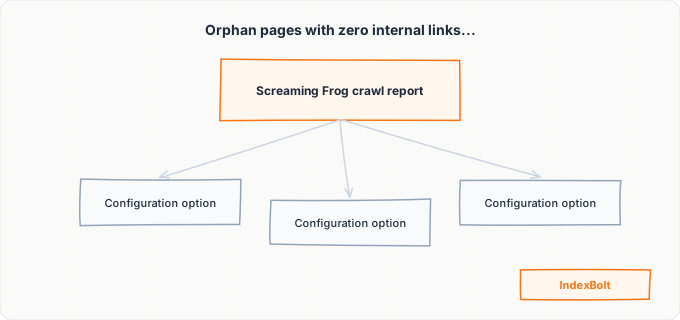
Crawl your site with Screaming Frog or Sitebulb and export all URLs with zero internal links. Cross-reference with your unindexed posts. For each orphan, find two to three related posts and add contextual in-content links with descriptive anchor text.
Evaluate Content Quality and Thin Post Patterns
Export unindexed posts and sort by word count. Posts below 300 words are likely thin content. For posts between 500-1,000 words, search the main topic on Google and compare against the top five results. If your post adds no unique value, plan content improvements or consolidations.
Noindex Archive and Taxonomy Pages
View the source of your tag, date, author, and category archive pages. If they lack noindex, they compete with posts for crawl budget. Set noindex on tag archives, date-based archives, and author archives (unless they have unique bios). Evaluate category archives individually.
Verify Sitemap Accuracy and Submit for Reindexing
Open /sitemap.xml and verify all target posts are included, no archive URLs are present, and no URLs return 404 or carry noindex. Resubmit in Search Console, then request indexing for priority posts or use IndexBolt for bulk submission.
Establish an Ongoing Publishing and Linking Workflow
For every new post: ensure 800+ words with original insight, two internal links to existing posts, a self-referencing canonical, and no noindex. After publishing, update two to three related posts with backlinks to the new post and verify it appears in your XML sitemap.
Common Issues & How to Fix Them
Posts stuck in "Discovered - currently not indexed" for weeks
Cause: Google has found the URLs through your sitemap or internal links but has decided they are not worth crawling yet. This typically happens when your site has a low crawl budget allocation due to limited external authority, or when Google sees too many low-quality pages and reduces overall crawl investment in your domain.
Fix: Improve your blog's overall quality signals: - **Remove or consolidate** thin posts - **Strengthen internal linking** to important posts - **Build external links** to your best content Submit high-priority URLs individually through Google Search Console's **URL Inspection tool** or use **IndexBolt** to send bulk indexing requests that bypass the crawl queue.
Blog posts indexed then removed within days
Cause: Google initially indexes new content but then removes it during a quality reevaluation pass. This happens when the post does not receive any engagement signals (clicks, time on page) from search results, or when Google's algorithms determine the content is too similar to existing indexed pages elsewhere on the web.
Fix: Improve the content quality and uniqueness of affected posts: - Add **original data**, unique examples, or expert quotes - Include **practical tools** that differentiate your content from competitors - Ensure your **title tags** and **meta descriptions** are compelling enough to generate clicks when the post does appear in search results temporarily
Only the homepage and about page are indexed, no blog posts
Cause: There is likely a structural crawl barrier between your main site and your blog. Common causes include: - The blog living on a **subdomain** that is not verified in Google Search Console - The blog section being rendered entirely with **client-side JavaScript** - A `robots.txt` rule blocking crawlers from the `/blog/` directory
Fix: Work through these checks: - Check `robots.txt` for any **disallow rules** affecting blog URLs - **Verify your blog subdomain** separately in Google Search Console if applicable - View your blog page source to ensure blog post links are present in the **initial HTML** and not injected by JavaScript after page load - Add a prominent **link to your blog** from your main navigation to ensure Google can discover the blog section during a normal crawl
Old blog posts indexed but new posts are not
Cause: Your crawl frequency has decreased, possibly because you stopped publishing for an extended period and Google reduced its crawl rate for your site. Alternatively, a recent plugin update or theme change may have introduced a noindex directive that only affects newly published posts while leaving existing indexed posts untouched.
Fix: Check the source HTML of a recent unindexed post for `noindex` tags. Compare it against an older indexed post to spot any differences in **meta tags**, **canonical URLs**, or **robots directives**. If no technical issues are found, the problem is likely **crawl frequency**. Publish consistently (at least weekly) and submit new post URLs to **Google Search Console** or **IndexBolt** immediately after publishing to encourage faster discovery.
Blog posts indexed on tag/category pages but not individual post URLs
Cause: Archive page cannibalization. Google found your blog post content on a tag or category archive page first, indexed that version, and then treated the individual post URL as a duplicate. This commonly happens when archive pages show full post content instead of excerpts and carry more internal link weight than the individual posts.
Fix: Take these actions to fix archive cannibalization: - Switch archive pages to showing **excerpts only** instead of full post content - Add `noindex` to **tag and date archives** - Ensure individual blog posts have **self-referencing canonical tags** - Increase **internal links** pointing directly to individual post URLs After making these changes, request **re-indexing** for the affected individual post URLs.
Pro Tips
Stop waiting weeks for Google to notice your blog posts. IndexBolt submits your blog post URLs directly to Google's indexing pipeline, bypassing the crawl queue entirely. Submit your unindexed blog posts in bulk and get them into search results within hours instead of weeks.
100 free credits. No credit card required. See results in under 24 hours.
Frequently Asked Questions
How long should I wait before worrying that a blog post is not indexed?+
Established blogs with regular publishing typically see posts indexed within **3-7 days**. Newer blogs may wait **2-4 weeks**. If a post is not indexed after two weeks on an established blog, use the **URL Inspection tool** to identify the specific blocker. Anything beyond a month needs investigation.
Does publishing frequency affect whether my blog posts get indexed?+
Yes. Frequent publishing signals an active site, earning faster crawling. Daily publishers see indexing within **1-2 days**; monthly publishers wait a week or more. However, publishing low-quality content frequently can **hurt** indexing. Aim for consistent, high-quality output rather than volume alone.
Should I noindex all my blog category and tag pages?+
Noindex **tag pages**, **date-based archives**, and **author archives** with no unique content. Keep category pages indexed only if they have **unique introductory content** and target keywords with search volume. If an archive page is just a bare listing, noindex it to preserve crawl budget.
My blog post was indexed but then disappeared from Google. What happened?+
Google reevaluates indexed pages and may remove those receiving **zero clicks**, outperformed by competitors, or that gained a `noindex` tag from a plugin update. Check the **URL Inspection tool** for current status. If it shows "Crawled - currently not indexed," improve content quality and resubmit.
Can too many blog posts hurt my site's indexing?+
Yes. Google's **Helpful Content system** applies a site-wide signal. If most posts are thin or low-quality, even your good posts struggle to get indexed. Audit your weakest content and either improve, consolidate, or remove it to lift indexing rates across the entire blog.
Do social media shares help my blog posts get indexed faster?+
Social shares do not directly influence indexing but create **indirect discovery signals** as Google crawls social platforms. Sharing posts drives traffic that increases Google's crawl interest. However, shares are not a substitute for proper technical setup and direct indexing via **Search Console** or **IndexBolt**.